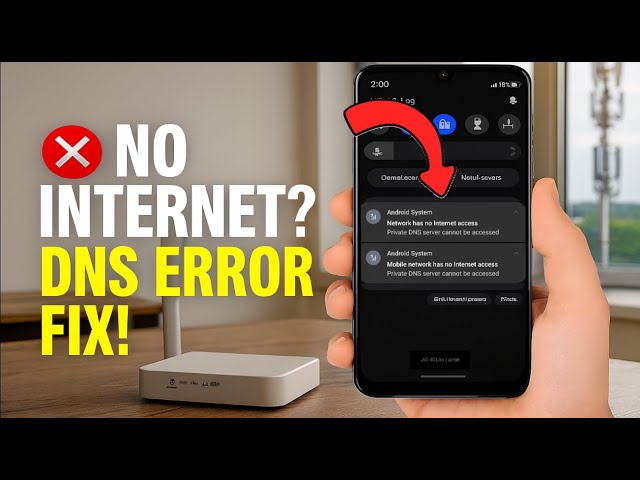
Few things feel more baffling than looking at your phone’s status bar, seeing a full Wi-Fi signal, reading “Connected, no internet,” and then checking your laptop next to you only to find it streaming HD video without a hiccup. Your home internet isn’t down. Your router hasn’t lost its connection. Yet your Android phone refuses to load a single webpage or send a message.
When this happens on a working home network, Private DNS is a prime suspect. Android’s Private DNS feature encrypts your Domain Name System (DNS) lookups over TLS (DNS-over-TLS) so local observers or certain middleboxes can’t easily snoop on or tamper with the domain names you look up. It is a great security feature when everything lines up. When a hostname has a typo, a custom DNS provider hiccups, or your router or ISP interferes with encrypted DNS traffic, Android can get stuck failing DNS resolution and report that there is no internet access.
Let’s walk through how Private DNS causes that “connected without internet” message on home Wi-Fi, how to pinpoint the exact cause, and how to fix it step by step.
Why Private DNS Breaks Internet Access on Home Wi-Fi
Every time you open an app or visit a website, your phone translates a human-readable name like example.com into a numeric IP address. That translation is handled by DNS. Without Private DNS, your phone usually relies on whatever DNS server your home router hands out over DHCP.
With Private DNS enabled in Private DNS provider hostname mode, Android tries to connect over port 853 using DNS-over-TLS to a specific hostname you entered—such as a public resolver or an ad-blocking DNS service. If Android cannot reach or validate that encrypted DNS server, name lookups stall or fail, even though your phone has a valid IP address and an active link to your home Wi-Fi router.
Here are the most common real-world reasons this happens at home:
-
A typo in the Private DNS hostname: A single extra space, missing letter, or
https://prefix in the hostname field prevents Android from resolving or authenticating the server. -
The custom DNS provider is down, rate-limited, or blocking requests: Third-party DNS resolvers occasionally experience outages, routing issues, or temporary blocks.
-
ISP or router interference with DNS-over-TLS: Some ISPs, regional filters, or router firewalls block or throttle outbound port 853 traffic, which breaks Private DNS handshakes while normal browsing might behave oddly or fail to resolve domains.
-
Clock skew or captive-portal / login states: If your phone’s system clock is wildly off or you are behind a secondary gateway/portal that hasn’t cleared traffic yet, TLS certificate validation or DNS reachability can fail.
-
Switching between mobile data and Wi-Fi: Sometimes a resolver works fine on cellular data but fails on your home ISP’s routing path, leaving your phone stranded on home Wi-Fi.
A quick sanity check helps confirm whether Private DNS is the culprit: if your phone loads pages normally over mobile data, or if switching Private DNS off immediately restores loading on home Wi-Fi, you have found your bottleneck.
Step-by-Step: How to Fix Private DNS on Android
Before changing router settings, test and fix the setting right on your Android phone. Menu names vary slightly by manufacturer and Android version, so look for closely matched labels if your phone uses a custom skin.
Troubleshooting When Changing Private DNS Isn’t Enough
Sometimes toggling Private DNS fixes the issue for five minutes and then the “no internet” warning creeps back. When that happens, look slightly wider at how your phone and home router handle network state and DNS.
Refresh the Wi-Fi Lease and Network State
Stale IP leases or stuck network checks on Android can keep showing “Connected, no internet” even after you fix Private DNS.
-
Tap your saved home Wi-Fi network in Settings and choose Forget (keep your Wi-Fi password handy).
-
Turn Airplane mode on for 15 seconds, then turn it off.
-
Reconnect to your home Wi-Fi network and enter your password.
If you rely on a custom Private DNS hostname, re-check that it is still saved properly after reconnecting.
Check Your Home Router and ISP DNS Settings
Your home router sits right between your Android phone and the internet. If your router is handing out a dead local DNS forwarder or struggling with IPv6/DNS routing, Android’s connectivity check can misread the connection.
-
Reboot the router (and modem if separate): Unplug power for 30 to 60 seconds, plug it back in, and wait a couple of minutes for all status lights to stabilize.
-
Inspect router DNS settings: Log in to your router’s admin page (often
192.168.1.1or192.168.0.1) and check whether it is set to obtain DNS automatically from your ISP or using custom DNS addresses. If custom router DNS is misconfigured, switching back to automatic or well-known reliable DNS addresses can clear up stalls. -
Test on another device: If a laptop, tablet, or second phone on the same Wi-Fi also shows no internet access, the problem is upstream with your router, modem, or ISP—not Android’s Private DNS setting.
Quick Comparison: Private DNS Modes on Android
| Mode | How It Works | Best For | Potential Catch |
| Off | Uses standard unencrypted DNS from the network/router | Quick diagnosis or networks that break DNS-over-TLS | DNS queries are not encrypted with DNS-over-TLS |
| Automatic | Uses DNS-over-TLS if the network’s advertised DNS supports it | Most everyday home and mobile connections | Some networks don’t advertise compatible TLS DNS |
| Private DNS provider hostname | Forces DNS-over-TLS to a specific hostname you enter | Consistent encrypted DNS or DNS-level filtering | Fails if hostname has a typo or port 853 is blocked |
Common Mistakes and Pro Tips
Mistakes to Avoid
-
Typing an IP address into the Private DNS hostname box: Android’s designated Private DNS field expects a domain hostname (like
dns.google), not a raw IPv4 or IPv6 address. Entering an IP address will fail TLS hostname verification. -
Pasting hidden spaces or
https://prefixes: Copying a hostname from a webpage often includes trailing spaces orhttps://, which breaks configuration. Type it cleanly or trim extra characters. -
Factory resetting your phone over a Wi-Fi DNS error: A full phone reset is major overkill for a DNS or router issue. Exhaust settings toggles, forgetting the network, and rebooting the router first.
Pro Tips for Home Wi-Fi Stability
-
Keep a backup plan when traveling or changing networks: A Private DNS hostname that works smoothly on your home Wi-Fi might be blocked on hotel, office, or restrictive guest Wi-Fi. Switching to Automatic temporarily often gets you online right away.
-
Check date and time settings: TLS connections rely on accurate system time. If your phone’s date or time is way off, secure connections—including encrypted DNS—can fail unexpectedly.
-
Separate DNS issues from weak Wi-Fi signals: If your signal bars are bouncing wildly or your phone keeps disconnecting from the SSID itself, check router channel congestion, distance, or band steering before blaming DNS.
Frequently Asked Questions
Is it safe to turn Private DNS off on my home Wi-Fi?
For a normal home network you trust, turning Private DNS off or leaving it on Automatic is a practical troubleshooting step and won’t suddenly expose your home router to outsiders. Keep in mind that without Private DNS, your DNS queries on that network are not encrypted via DNS-over-TLS, so anyone on the same local network or your ISP can see the domain names you look up.
Why does Android say “Connected, no internet” when WhatsApp or some apps still work?
Android’s “no internet” indicator relies on connectivity checks that can fail when DNS resolution times out or gets blocked, even if a specific app already has an active socket, cached route, or direct IP connection. Fixing DNS resolution usually brings both the status indicator and all apps back in sync.
Does changing Private DNS affect other devices on my home Wi-Fi?
No. Android’s Private DNS setting applies only to that Android device. Your laptop, smart TV, iPhone, or other family members’ phones keep their own network configurations unless you change a setting directly on the router.
Why did Private DNS suddenly stop working after months of working fine?
A hostname can stop resolving due to a provider outage, an expired or rotated certificate issue, a router firmware update, or a change on your ISP’s side that started interfering with port 853 traffic. Testing Automatic or Off quickly tells you whether the configured hostname is the stumbling block.
Conclusion
Seeing “Connected, no internet” on a working home Wi-Fi network is frustrating, especially when Private DNS is quietly blocking name resolution behind the scenes. Start by checking Private DNS in your Android settings, test Automatic or Off, double-check any custom hostname for typos, and reboot your router or forget and re-add the network if a stale state lingers. Once DNS lookups flow cleanly again, your phone should stay connected and load pages without missing a beat.