You sit down to work, join a call, or stream a video, and your Android phone suddenly drops the Wi-Fi connection—or connects without internet access—right after switching bands, re-authenticating, or roaming near a weak router. When you dig into logs or router settings, you see a string of unfamiliar hardware addresses popping up for the exact same phone.
Android’s MAC randomization feature is built to protect your privacy when scanning for networks and connecting to wireless access points. In most places, it works quietly in the background. On certain home routers, captive portals, enterprise networks, or strict DHCP setups, however, changing or mismatched MAC addresses can cause DHCP lease conflicts, captive-portal re-prompts, or access-control drops that make your connection feel unstable.
Let’s walk through how MAC randomization actually behaves on Android, how to check if it is causing your drops, and how to fix it cleanly on specific trusted networks.
Why Randomized MAC Addresses Sometimes Trigger Wi-Fi Drops
Every Wi-Fi chip has a permanent, factory-assigned MAC address (Media Access Control address) burned into its hardware. Historically, trackers and access points could watch that fixed address as you moved around and build a location history.
To stop passive tracking, modern versions of Android generate a virtual MAC address per network profile. Android uses two main flavors of randomization:
-
-
Persistent randomization: Android generates a randomized MAC address for a saved Wi-Fi network (SSID) and reuses that same randomized address for that network across reconnections.
-
Non-persistent randomization: On newer Android releases (starting around Android 12), certain network types—such as open networks without a captive portal or profiles configured with non-persistent rules—can rotate to a fresh randomized MAC address if more than 24 hours have passed since the previous one was generated, taking effect on a new connection.
-
By Android’s design, the OS does not intentionally kick you off an active Wi-Fi session just to rotate a MAC address. Real-world drops usually happen around reconnections, DHCP renewals, IP/MAC table mismatches, or network allowlists. For example:
-
A router or mesh node has a static IP reservation or MAC allowlist tied to your phone’s Device MAC (factory MAC), so a randomized address gets denied or drops off the table.
-
A school, office, or hotel network requires MAC registration or expects a consistent identity across re-authentication.
-
A flaky dual-band router or extender struggles when a client reconnects after a brief drop and negotiates a lease or session state.
Before changing system settings, make sure a weak signal or router reboot isn’t the real culprit. Test near the router with another device—if laptops and other phones stay rock-solid while your Android phone drops or hangs on “Obtaining IP address,” checking the network’s MAC setting is a smart next step.
How to Switch From Randomized MAC to Device MAC on Android
Menu labels vary slightly depending on your phone maker and Android version. The safest approach is to change the setting only on trusted networks (like your home Wi-Fi or a registered work network), not on public coffee-shop or airport Wi-Fi.
Google Pixel and Stock / Near-Stock Android
-
Open Settings and tap Network & internet (or Wi-Fi).
-
Tap Internet or Wi-Fi, then tap the gear icon next to your problem Wi-Fi network.
-
Tap Advanced or View more if those options are collapsed.
-
Tap Privacy (or MAC address type).
-
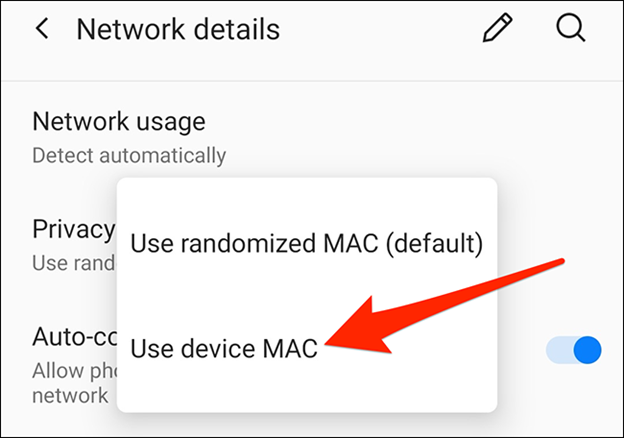
Select Use device MAC instead of Use randomized MAC.
Verification: Return to the network’s details screen and confirm the listed MAC address now matches your phone’s permanent hardware MAC (often shown under Settings > About phone or Network details), then toggle Wi-Fi off and back on to verify a steady connection.
Samsung Galaxy (One UI)
-
-
Open Settings and tap Connections.
-
Tap Wi-Fi, then tap the gear icon next to the Wi-Fi network that keeps dropping.
-
Tap View more (if shown) and select MAC address type.
-
Choose Phone MAC (or Use device MAC).
-
Verification: Check the MAC address row on that same network info screen to confirm it displays your phone’s fixed MAC address and stays connected after reconnecting.
Other Android Brands (Xiaomi, OnePlus, Motorola, etc.)
Most skins follow the same structure inside the saved Wi-Fi network’s detail page. Tap the arrow or gear icon next to the network name, look for Privacy or MAC address type, and switch from randomized to Device MAC. If you cannot find the option on an older build, check Settings > System > Developer options (after tapping Build number seven times in About phone) to see if a Wi-Fi randomization toggle is exposed.
Quick Comparison: Randomized MAC vs. Device MAC
Common Mistakes and Pro Tips
Mistakes to Avoid
-
Turning off MAC randomization on every network: Disabling it globally strips away a helpful privacy safeguard when you are out at cafes, malls, hotels, or airports. Change it per network instead.
-
Forgetting and re-adding a network without checking the toggle: After you Forget a network and reconnect, Android defaults back to randomized MAC for the new profile. Always re-check the setting after forgetting a network.
-
Blaming MAC randomization for a failing router or weak 5 GHz signal: If your signal drops to one bar or your router’s DHCP pool is exhausted, switching to Device MAC won’t cure physics or router overload.
Pro Tips for a Smoother Connection
-
Check both 2.4 GHz and 5 GHz bands: If your router broadcasts separate network names (SSIDs) for 2.4 GHz and 5 GHz, Android treats each SSID as a separate profile. Update the MAC setting on both if you switch between them.
-
Restart the router after changing MAC or IP rules: If you edited router MAC filtering, parental controls, or DHCP leases while testing, rebooting the router clears stale table entries.
-
Keep a note of your Device MAC: If an IT admin or router requires you to register your device, having your factory MAC handy saves back-and-forth troubleshooting.
Frequently Asked Questions
Will turning off randomized MAC address hurt my security?
Switching to Device MAC on a trusted home or work network is generally safe for everyday use, though it does reduce privacy against devices that can observe your hardware address on that local network. Keep randomized MAC enabled on public or untrusted Wi-Fi networks.
Why does Android keep disconnecting on one Wi-Fi network but not others?
Different networks run different router firmware, captive portals, security policies, and DHCP setups. A network that enforces MAC allowlists, strict session tracking, or buggy client handling can reject or drop a connection more easily than a standard home router.
Does changing MAC address type delete my saved Wi-Fi password?
No. Changing the MAC address setting inside a network’s details menu updates how the connection identifies itself without erasing the network profile or saved password.
What if my Wi-Fi still drops after choosing “Use device MAC”?
If the drops continue, restart both your phone and the Wi-Fi router, toggle Airplane mode on for 15 seconds and off, and check whether the issue happens only on 5 GHz or in specific rooms. Persistent drops across all bands and devices often point to router firmware bugs, channel interference, or ISP line instability rather than MAC randomization.
Conclusion
Randomized MAC addresses are a great privacy default on Android, especially on public networks, but they can occasionally clash with MAC allowlists, router reservations, or picky network gear. Switching trusted networks to Use device MAC (or Phone MAC) is a quick, reversible fix—and if the drops stick around after that, looking at your router and signal strength is the natural next step.