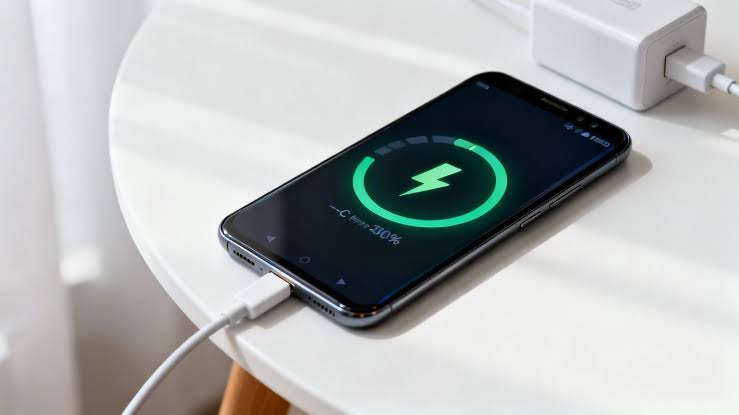
You plug your Android phone into the wall with the original cable that came in the box, see the “Fast charging” or “Super fast charging” notice pop up for a few seconds, and then walk back twenty minutes later to find it crawling along at a snail’s pace. Worse still, your estimated time to full suddenly jumps from forty minutes to nearly three hours.
I dealt with this exact annoyance on a daily driver last year. Every time I plugged it in while checking messages or sitting in a warm room, the fast-charge indicator would light up briefly and then drop straight back to standard charging. Because I was using the genuine cable and adapter, I figured something major had broken—until I traced how Android’s power negotiation actually behaves under heat, lint, and voltage drops. Once you see what triggers that drop, fixing it is usually straightforward.
Why Android Fast Charging Drops Back to Slow Charging Even on Original Cables
Fast charging isn’t a fixed speed locked in the moment you plug in your phone. The charger and phone negotiate power continuously through USB Power Delivery (USB-PD) or proprietary protocols like Samsung Super Fast Charging or Xiaomi HyperCharge. If conditions shift mid-session, Android steps the wattage down to protect the battery and hardware.
Here is what typically causes that drop even with an original cable:
-
Thermal throttling: Pushing higher wattage generates heat in the battery, charging IC, and power brick. If internal temperatures climb—especially while gaming, video calling, using mobile data, or charging under a case—Android intentionally lowers charging speed to prevent battery degradation or overheating.
-
Compressed lint or a shallow USB-C connection: Even a tiny layer of pocket lint packed at the base of the USB-C port keeps the plug from seating fully. A marginal connection can pass the initial fast-charge handshake and then drop back to basic charging as resistance builds or the cable shifts slightly.
-
Power management, battery protection, or adaptive charging: Features like adaptive charging, battery protection caps, or power-saving modes can throttle peak charging rates once the battery reaches a certain percentage or when the system detects background load.
-
Wall outlet or voltage fluctuations: A loose wall socket, overloaded multi-plug strip, or unstable line voltage can cause the adapter to fall back from high-wattage fast charging to standard power delivery.
-
Internal cable fatigue: Even genuine cables wear out internally near the strain relief after months of bending, coiling, or getting tugged while plugged in. The data/CC pins that negotiate fast power can fail intermittently while basic power wires still trickle juice.
Step-by-Step Solution: How to Fix Fast Charging Dropping to Slow Charging
Follow these steps in order from quickest to deeper checks. Test after each step so you know what actually solved it.
1. Remove Heat Sources and Let the Phone Cool Down
When I first noticed my phone dropping out of fast charging right after a video call, the back glass was noticeably warm. Letting it cool for a few minutes and charging screen-down on a cool surface stopped the drop immediately.
-
Unplug the cable and take off any thick or insulated phone case.
-
Feel the back of the phone and the charging brick—if either feels warm, let them rest for 3 to 5 minutes.
-
Place the phone on a cool, hard surface (like a table or tile) rather than a bed, couch, or direct sunlight, and leave the screen off while charging.
2. Inspect and Clean Lint Out of the USB-C Port
Pocket lint is one of the most common culprits behind intermittent fast charging on Android. A plug that sits half a millimeter shallow can negotiate fast charge at first and then slip into slow charging.
-
Unplug the charger and shine a bright flashlight straight into the USB-C port to check for packed dust or lint at the bottom.
-
Gently loosen debris along the back wall using a wooden toothpick, plastic pick, or soft dry brush—avoid metal needles or pins that can scratch contacts or short pins.
-
Tap the phone gently with the port facing downward to shake loose particles out, then plug your original cable in and check that it seats firmly with minimal wobble.
3. Check Fast Charging Settings and Wall Power Source
Sometimes a system update toggles a setting or you are plugged into a strip that cannot sustain peak wattage.
-
Open Settings > Battery (or Settings > Device care > Battery on Samsung devices) and confirm Fast charging / Super fast charging is turned On.
-
Check whether Power saving / Battery Saver or strict battery-protection routines are limiting charging speed.
-
Plug the original charging brick directly into a firm wall outlet rather than a loose extension cord, cheap power strip, or computer USB port.
4. Restart the Phone to Reset the Charging Controller
Android’s power-delivery controller can occasionally get stuck in a conservative state after a system update, a brief surge, or an interrupted charge cycle.
-
With the charger unplugged, do a full Restart of your Android phone.
-
Once the phone finishes booting and background tasks settle, plug in your original cable and watch the lock screen charging label for at least 5 to 10 minutes.
5. Cross-Test the Original Cable, Brick, and Port
If fast charging still drops back after cooling, cleaning, and restarting, isolate whether the original cable, the power adapter, or the phone’s port/battery is failing.
-
Plug your original cable into a different known-good fast charger of matching wattage—if fast charging stays stable, your original adapter may be throttling or failing under load.
-
Test your original adapter with a different certified fast-charge cable—if fast charging holds steady with the swap, the original cable’s internal negotiation lines may be worn.
-
Gently wiggle the cable near the connector while watching the charging status; if it drops out of fast charge when flexed, replace the cable or have the port inspected.
Practical Tips, Mistakes to Avoid, and Real Insights
A few habits make a big difference in keeping fast charging reliable without hurting battery health:
-
Don’t heavy-use the phone during top-ups: Playing heavy games, recording long video, or staying on a hotspot while fast charging stacks heat from the processor on top of heat from the charger—forcing Android to throttle charging speed.
-
Don’t shove metal tools into the port: Using a sewing pin, safety pin, or metal tweezers to dig out lint risks bending internal pins or causing a short circuit. Wood or plastic is much safer.
-
Don’t assume “original” means immune to wear: Factory cables are great, especially right out of the box, but sharp bends near the USB-C head or tight wrapping over time can still break internal strands.
-
Watch out for near-full battery slowdown: Even when everything works properly, many Android phones intentionally taper charging speed as the battery climbs past 80% to protect long-term battery lifespan. A slowdown near 85%–95% is normal behavior, not a fault.
Frequently Asked Questions
1. Why does my Android show fast charging at first and then switch to slow charging?
Most often, the phone starts at high wattage and steps down because internal temperature rises, the USB-C connection has slight resistance from dust or wear, or power management throttles charging to protect the battery.
2. Can a dirty charging port cause fast charging to drop after a few minutes?
Yes. Packed lint or grime at the bottom of the USB-C port can keep the plug from seating completely or create intermittent contact resistance, causing the charger to fall back from fast charging to standard charging.
3. Does a slow drop in charging speed near 80% or 90% mean something is broken?
No. Slowing down near high charge levels is normal battery-protection behavior on most Android phones and helps reduce heat and lithium-ion stress as the cell fills up.
4. How do I know if my original cable is bad even if it still charges slowly?
Fast charging relies on proper communication and low resistance across the cable’s conductors. If swapping to another certified cable keeps fast charging active—or flexing the cable near the connector causes fast charging to drop—the original cable is likely worn internally.
5. When should I get my phone repaired instead of buying a new cable?
If multiple known-good fast chargers and cables all drop back to slow charging on a cool phone with a clean port, or if the battery drains unusually fast and overheats easily, have a technician inspect the USB-C port assembly and battery health.
Wrap-Up
Fast charging dropping back to slow charging on an original cable is frustrating, especially when you are counting on a quick top-up. Start with the easy wins—let the phone cool down without a case, clean lint out of the USB-C port safely, check your fast-charging toggle and wall outlet, and restart the device. If the drop still happens, cross-testing the cable and adapter will quickly tell you whether a worn accessory or a hardware issue is behind it.