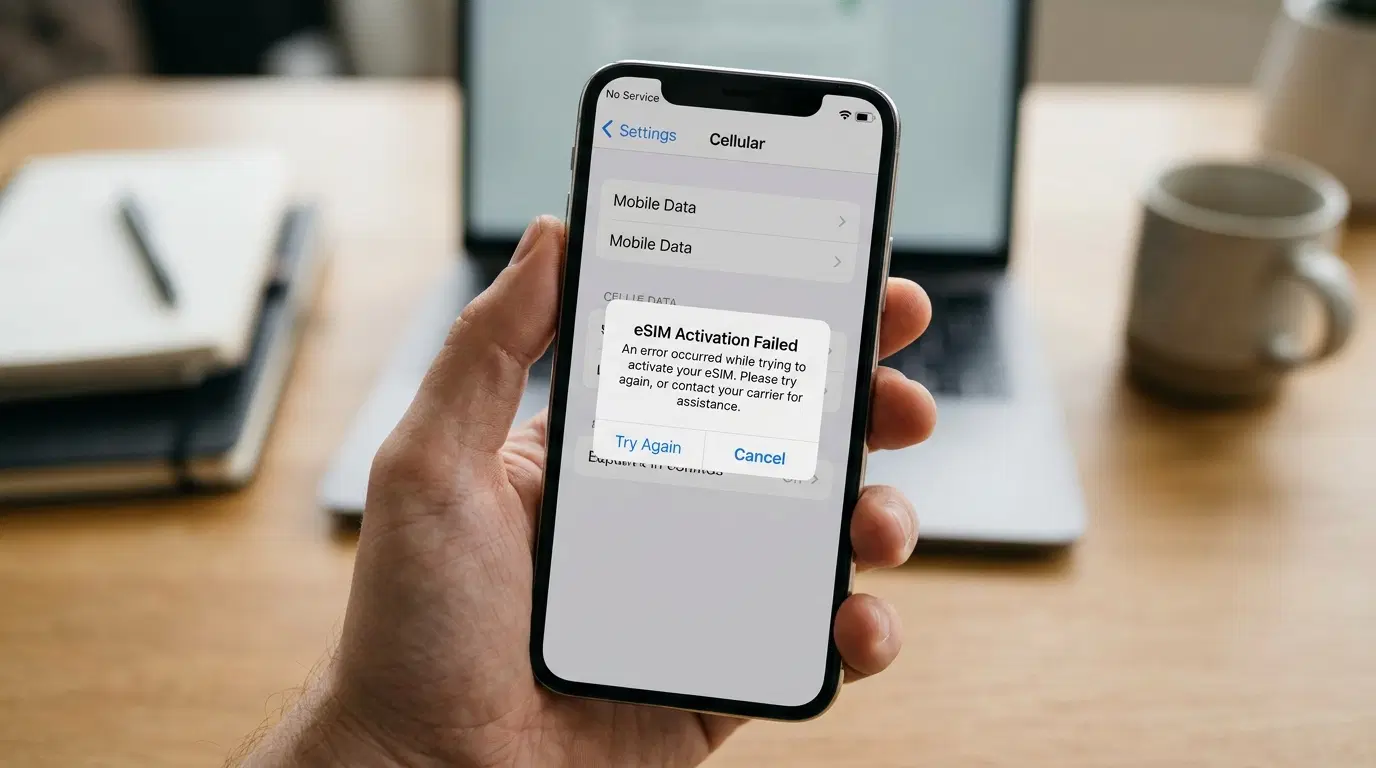
You wake up, install a routine Android system update over Wi-Fi, grab your phone, and suddenly your eSIM is either stuck on “No Service” or completely missing from your settings. Your heart skips a beat—especially if that eSIM handles your primary calls, two-factor authentication codes, or mobile data while you are out of the house.
I hit this exact wall last year after a security patch rolled out on my Android phone. One minute my secondary eSIM line was humming along fine; the next, the status bar showed an empty signal icon or the line looked like it had vanished into thin air. Before you panic and assume your plan is dead or your phone’s modem is fried, take a breath. In most cases, your eSIM profile is still sitting right there on the device or just needs a clean handshake with the cellular network.
Why an Android eSIM Breaks or Disappears After an Update
When Android installs a system or security update, it modifies system partitions, refreshes modem firmware, and sometimes resets default radio or routing preferences. That update process can knock your eSIM loose in a few common ways:
-
The line or data route got flipped: An update can toggle an eSIM line off or switch mobile data and calls back to a physical SIM or primary line.
-
The modem stack hung during reboot: Android updates sometimes finish booting the OS before the baseband/cellular modem finishes re-registering your eSIM profile with the local tower.
-
APN or roaming flags got reset: System patches occasionally clear or alter Access Point Name (APN) values or data roaming switches, leaving your line connected to a tower with zero usable data or voice routing.
-
UI hiding vs. actual deletion: Many users assume a missing eSIM was wiped by the update, when in reality the profile is still stored in the embedded SIM chip (eUICC) and just isn’t showing up cleanly until the network stack refreshes.
Step-by-Step Fix: Bring Your Android eSIM Back
Work through these steps in order from quickest to deeper fixes. Most people get their signal back within the first three steps.
1. Check the eSIM Toggle and Preferred SIM Routing First
Before touching anything else, look inside your SIM settings to see whether the eSIM is actually turned on and assigned to the right job.
-
Open Settings and go to Network & internet > SIMs (on Samsung Galaxy devices, go to Settings > Connections > SIM manager).
-
Look under your eSIM list and verify that the toggle next to your eSIM profile is On.
-
Check Mobile data, Calls, and Messages routing to make sure the update didn’t quietly shift mobile data to another SIM or “None”.
-
If you use a travel or roaming eSIM, open that eSIM’s settings and confirm Roaming is enabled if your carrier or plan requires it.
2. Toggle Airplane Mode and Do a Full Restart
A quick screen lock or brief toggle won’t always clear a stuck radio state after an update. Give the cellular stack a proper reset.
-
Swipe down to open Quick Settings and turn Airplane mode On.
-
Wait 30 seconds so the phone drops its active tower registration cleanly.
-
Turn Airplane mode Off and wait another minute for signal bars to return.
-
If you still see No Service, do a full Restart (not just sleep/lock) so the system and baseband initialize together.
3. Toggle the eSIM Off and Back On
When I had my eSIM disappear from the active status bar after an update, simply toggling the eSIM line off, waiting a minute, and toggling it back on forced Android to re-read the profile from the eSIM chip without deleting anything.
-
Go back to your SIMs or SIM manager screen.
-
Switch the affected eSIM Off and wait about 60 seconds.
-
Switch the eSIM back On and watch for the carrier name and signal indicator to populate.
4. Verify APN Settings and Network Mode
Sometimes your eSIM attaches to a tower, yet data or calls fail because the APN changed or a post-update 5G handoff is acting up.
-
Open your eSIM settings and look for Access Point Names (APN).
-
Tap the three-dot menu (or reset option) and choose Reset to default if the entries look blank or altered, or re-enter the exact APN details provided by your carrier.
-
Check Preferred network type. If 5G is unstable right after an update, test switching to LTE temporarily to see if a steady 4G/LTE connection locks in.
-
If automatic carrier search fails, temporarily turn off automatic network selection, scan available networks, and pick your carrier manually.
5. Reset Mobile Network Settings (Without Wiping Your Phone)
If the network stack is still glitched after an OS update, resetting network settings clears corrupted wireless/cellular configurations while leaving your personal files and apps intact.
-
Go to Settings > System > Reset options (on Samsung, Settings > General management > Reset).
-
Tap Reset mobile network settings (or Reset Wi-Fi, mobile & Bluetooth).
-
Important: Read the confirmation screen carefully before tapping reset—make sure you do not check any box that says “Erase eSIMs” unless you intentionally want to wipe the profile and have a way to reinstall it.
-
Restart the phone and test your signal.
6. Reinstall or Reprovision the eSIM If It Truly Vanished
If you checked your SIM list and the eSIM profile is genuinely gone—or it stays stuck on “No Service” after all network resets—the profile may have become corrupted or removed during the update.
-
Connect your Android phone to reliable Wi-Fi.
-
Check your original activation email, carrier app, or provider account portal to see if your QR code or SM-DP+ / activation code can be reused.
-
Go to Settings > Network & internet > SIMs (or SIM manager) > Add eSIM and scan your QR code or enter the activation details.
-
If your QR code was single-use or won’t scan again, contact your carrier’s support or use their app to reprovision / reissue a fresh eSIM profile.
Real-World Tips, Mistakes to Avoid, and Practical Insights
Having dealt with eSIM hiccups across Android devices, a few practical habits save hours of frustration:
-
Don’t install major OS updates right before traveling or when you can’t reach Wi-Fi. If a system update knocks your eSIM offline or requires reprovisioning, you will want Wi-Fi access and support availability rather than troubleshooting at an airport.
-
Keep a copy of your eSIM setup info somewhere safe. Save your carrier portal login, activation details, or QR code (following your provider’s security rules) in a secure note or email archive—not just on the phone that might need re-provisioning.
-
Avoid jumping straight to a factory reset. A full factory reset is rarely needed for an eSIM issue after an update, and if you aren’t careful with reset options, you can wipe profiles unnecessarily.
-
Watch out for automatic data switching on dual-SIM setups. One of the sneakiest post-update behaviors is an eSIM staying listed while Android quietly routes mobile data back to a physical SIM—making it look like your data plan stopped working when it was just pointed at the wrong line.
-
Check if a follow-up patch is waiting. Sometimes a bug introduced in a system update is fixed by a tiny follow-up security or carrier settings update a few days later.
Frequently Asked Questions
1. Does an Android system update automatically delete my eSIM?
Usually, no. Most system and security updates keep your eSIM profile intact. When an eSIM seems to disappear or show “No Service,” it is more often disabled, misrouted, or waiting on a fresh network/modem handshake after the reboot.
2. Why does my Android show “No Service” on the eSIM even though the profile is still listed?
A listed profile with “No Service” means the eSIM is on the phone, but it isn’t actively registered on a cellular network. Common culprits include a toggled-off line, airplane mode glitch, missing APN settings, roaming turned off on a travel plan, or a temporary post-update modem hiccup.
3. Can I restore a deleted or missing eSIM from a Google Drive backup?
No. Google backups cover your apps, messages, photos, and general device settings, not carrier-provisioned eSIM profiles. To get a deleted profile back, you must either reuse a reusable activation code/QR code if allowed by the provider or ask your carrier to reissue a new eSIM.
4. Can I reuse the same eSIM QR code if I have to reinstall it?
That depends on your carrier or eSIM provider. Some providers allow reinstalling an existing profile or scanning again under specific conditions, while many issue single-use QR codes that lock once activated—meaning you will need a fresh QR code or in-app re-provisioning from support.
5. When should I stop troubleshooting and contact my carrier?
Reach out to your carrier if you have already toggled the eSIM, restarted the phone, checked APN/roaming settings, and reset mobile network settings without getting service back—or if the eSIM disappeared and you need a replacement profile issued. Also contact them if your phone displays a carrier-lock or activation rejection message.
Wrap-Up
An Android eSIM showing No Service or vanishing after a system update feels alarming in the moment, especially when you rely on your phone all day. Start with the simple checks—verify the line is toggled on and selected for mobile data, toggle Airplane Mode, do a full restart, and check APN or roaming settings. If the profile truly needs to be rebuilt, having your carrier login or support channel ready gets you reconnected without turning a minor update glitch into a major headache.