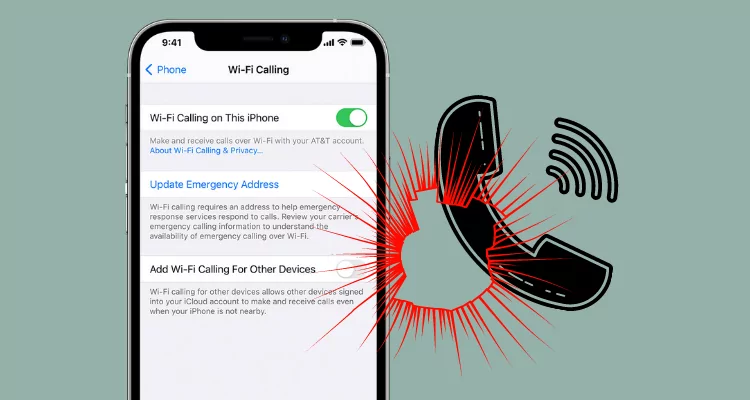
You reboot your phone to clear a minor glitch, open your browser, and see a strong Wi-Fi signal. Yet when you try to place a call in a low-signal room, the expected Wi-Fi Calling indicator never shows up. The toggle in your settings still says it is on, but your phone refuses to complete the encrypted handshake with your carrier’s gateway.
This post-restart stall is surprisingly common and frustrating. When a phone boots up, dozens of network daemons, SIM profiles, VPN services, and Wi-Fi connections initialize in a race condition. If your Wi-Fi router takes a few seconds to assign an IP address while the baseband modem is already trying to register with the Evolved Packet Data Gateway (ePDG), the registration attempt can time out and wait quietly in the background.
Why Wi-Fi Calling Fails to Re-Register After a Reboot
Unlike a normal web page request, Wi-Fi Calling (Voice over Wi-Fi, or VoWiFi) builds a secure IPsec tunnel from your phone through your local router straight to your mobile carrier’s core network. That tunnel depends on several moving parts lining up in order right after startup.
-
Startup timing mismatches: Your modem and Wi-Fi stack may initialize out of sync, causing the initial IPsec tunnel negotiation to fail before the network is fully routable.
-
Captive portal or DNS lag: On home or office networks with custom DNS, ad blockers, or routers slow to hand out leases, the phone cannot immediately resolve the carrier’s VoWiFi gateway address.
-
Active VPN or split-tunneling conflicts: A VPN app set to auto-start on boot can intercept or block UDP ports 500 and 4500, preventing IPsec tunnel registration.
-
Stale carrier configuration or dual-SIM confusion: A pending carrier profile update or a dual-SIM setup where the wrong line is set as default for calls can stall automatic registration after a restart.
In real-world use, this happens all the time when someone restarts their phone inside a basement office or concrete apartment with weak cellular bars. The phone connects to Wi-Fi first, tries to establish VoWiFi before the local network is ready, gets rejected or times out, and leaves you wondering why the feature worked ten minutes earlier.
Step-by-Step Fixes to Restore Automatic Wi-Fi Calling
Start with the least disruptive checks first. Most post-reboot registration hiccups come down to a stuck radio state or a startup timing race rather than a broken phone.
Platform and Network Comparison: What to Check Where
Because iOS, Android skins, and home routers handle network startup differently, pinpointing where the registration breaks saves time.
Common Mistakes That Keep Wi-Fi Calling Stuck
Many people repeat the exact same actions when troubleshooting and accidentally delay the fix.
-
Rebooting repeatedly in rapid succession: Restarting your phone three times in two minutes interrupts background network registration and forces the modem to start over every time. Give it a full minute after boot before judging.
- Testing on a restricted network: Guest networks, hotel Wi-Fi, office networks, and some public hotspots block IPsec VPN traffic required for Wi-Fi Calling. Always test on a standard home Wi-Fi network or a separate hotspot to isolate the issue.
- Ignoring emergency address prompts: Carriers require a valid registered emergency address before activating or re-activating Wi-Fi Calling on a line. Skipping or failing that step can leave the feature half-configured.
-
Resetting network settings too early: Wiping network settings clears saved Wi-Fi passwords and paired Bluetooth devices. Try toggling Airplane Mode, checking VPN/DNS interference, and testing another Wi-Fi network first.
Practical Tips for Reliable Auto-Registration
Once you get Wi-Fi Calling registering properly again, a few small habits help keep it working smoothly after future restarts:
-
Give your router and phone a brief buffer after power cuts: If both your router and phone restart after a power outage, wait until the router’s internet light is steady before expecting VoWiFi to register.
-
Watch out for auto-connecting VPNs: If you rely on a VPN for privacy, check whether your VPN app offers split tunneling or pause it briefly when you need immediate cellular/Wi-Fi call registration.
-
Verify carrier provisioning after SIM or plan changes: If you recently swapped a physical SIM to an eSIM, changed plans, or moved your SIM to a new phone, carrier-side provisioning can sometimes be finicky until your carrier refreshes the line.
Frequently Asked Questions
Why does Wi-Fi Calling work before restarting my phone, then fail afterward?
After a restart, your phone brings up its cellular radio, Wi-Fi interface, and background apps almost at once. If Wi-Fi connects before the network path to your carrier’s gateway is ready—or if a VPN or DNS rule interferes right at boot—the initial registration attempt can fail and stay idle until you refresh the connection.
Does a strong Wi-Fi signal guarantee Wi-Fi Calling will register?
No. A full Wi-Fi bar icon only means your phone has a strong link to your local router. Wi-Fi Calling still needs a clean internet route and unrestricted IPsec traffic to reach your mobile carrier’s servers.
Can a VPN stop Wi-Fi Calling from turning on automatically?
Yes. VPNs reroute network traffic and can interfere with the encrypted tunnel your carrier uses for Wi-Fi Calling. Temporarily turning off your VPN right after a restart is one of the fastest ways to test if it is blocking registration.
How do I know if the issue is my phone or my carrier?
Test your phone on a completely different Wi-Fi network or another mobile hotspot. If Wi-Fi Calling registers normally on a different network, your original Wi-Fi router or internet connection is likely blocking or delaying the connection. If it fails across every network—or the toggle refuses to stay enabled—contact your carrier to verify Wi-Fi Calling provisioning on your line.
Will resetting network settings fix Wi-Fi Calling after a restart?
It can help if corrupted network configuration data is causing the hang-up, as both Apple and Samsung include network resets in their troubleshooting steps. However, it erases saved Wi-Fi networks and Bluetooth pairings, so treat it as a later step after toggling Airplane Mode and checking VPNs or DNS.
Conclusion
When Wi-Fi Calling does not register automatically after a restart, the culprit is usually a boot-time network timing gap, an active VPN or DNS rule, a dual-SIM setting mismatch, or a router filtering the connection—not a permanently broken phone. Start with a clean Airplane Mode cycle on a verified Wi-Fi connection, check your calling preferences and VPN state, and test another network if the indicator still stays missing. Once you spot which link in the chain is stalling, getting reliable Wi-Fi Calling back takes just a few minutes.