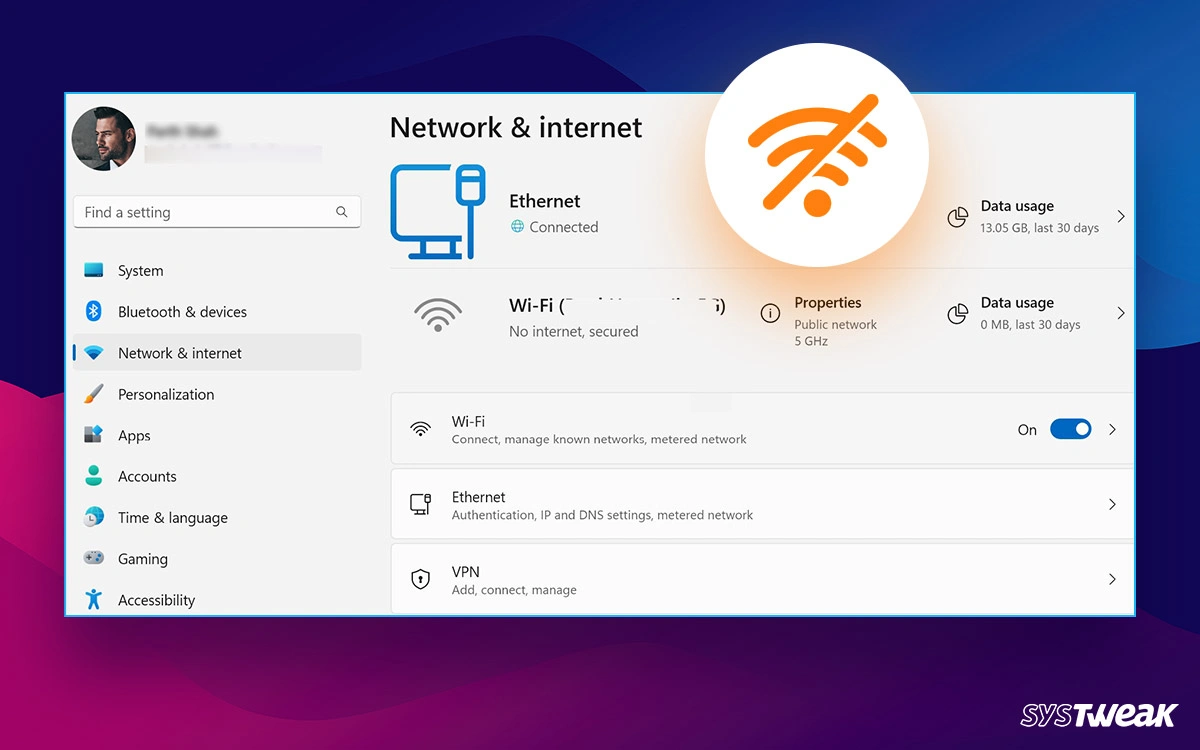
Few things derail a workday or study session faster than seeing your laptop proudly display “Connected” to your phone’s hotspot—followed immediately by “No internet, secured.” You have a radio link between the two devices, so your laptop sees the phone and passed the handshake, yet packets aren’t making it out to the web.
When that happens, you are usually dealing with one of three culprits: a stuck network lease or DNS glitch on the laptop, a temporary data/tethering hiccup on the phone, or a VPN/proxy/firewall getting in the way. Let’s walk through how to diagnose what is actually broken and get your connection flowing again without wasting an hour guessing.
First, Figure Out Which Side Is Actually Stuck
Before changing settings on ten different menus, run a two-minute check to see where the roadblock sits:
- Test mobile data directly on the phone: Turn off Wi-Fi on your phone and load a webpage or check a messaging app over cellular data. If the phone itself has no active data connection, no data balance, or a weak signal in a dead spot, the laptop has nothing to ride on.
- Check if other devices work on the hotspot: If a second phone or tablet loads pages fine through the same hotspot, your phone’s tethering is working and the issue is isolated to your laptop’s network stack or profile.
- Notice whether the laptop gets an IP address: If your laptop shows a
169.254.x.xaddress (APIPA), it failed to get a proper IP lease from the hotspot via DHCP.
Knowing whether the phone or the laptop is the bottleneck saves you from fixing the wrong device.
Quick Fixes That Solve Most Hotspot Hiccups
Start with the fastest resets. In day-to-day troubleshooting, half of “connected, no internet” cases come from a stale lease or a glitchy wireless session.
Toggle Airplane Mode and Reconnect
A quick radio reset clears stuck routing states on both ends:
- Turn on Airplane Mode on your phone for 10 to 15 seconds, then turn it off and re-enable your mobile hotspot.
- On your laptop, disconnect from the hotspot Wi-Fi, turn Wi-Fi off for a few seconds, turn it back on, and reconnect.
If pages load right after reconnecting, your previous session simply hung—no deeper configuration changes needed.
Forget the Hotspot Network on Your Laptop
Sometimes a laptop holds onto old network profile data, wrong DNS entries, or a bad cached lease after a hotspot password or band change.
- On Windows: Open Settings > Network & internet > Wi-Fi > Manage known networks, select your phone’s hotspot network, and click Forget. Then scan again, connect fresh, and enter the password carefully.
- On macOS: Open System Settings > Wi-Fi, click Details (or the info icon) next to the hotspot network, choose Forget This Network, and reconnect.
If the laptop connects cleanly afterward and gets internet access, the old saved profile was the culprit.
Check VPNs, Proxies, and Security Software
A VPN running in the background or a leftover manual proxy setting on the laptop can easily cause a “connected, no internet” status—especially on captive or tethered connections where routing tables don’t line up.
- Disconnect any active VPN client on your laptop and test a site in your browser.
- On Windows, go to Settings > Network & internet > Proxy and make sure Use a proxy server is turned off unless your organization specifically requires one.
- If you use third-party antivirus or firewall software, temporarily pause its network shield for a test; if internet access returns, add an exception rather than leaving protection off long-term.
Fixing Laptop Network Stack and Adapter Issues (Windows & Mac)
When basic toggles don’t clear the error, your laptop’s IP assignment, DNS cache, or Wi-Fi adapter state usually needs a clean reset.
Reset IP Address and Flush DNS on Windows
If your laptop is connected but failing to resolve domain names or holding a stale IP address, command-line resets often fix it in under a minute:
- Click the Start menu, type cmd, right-click Command Prompt, and choose Run as administrator.
- Run
ipconfig /releaseand press Enter to drop the current IP lease. - Run
ipconfig /renewand press Enter to request a fresh IP address. - Run
ipconfig /flushdnsand press Enter to clear corrupted DNS cache entries. - If it still fails, run
netsh winsock resetand restart the laptop.
Once the laptop reboots and reconnects, test loading a site like example.com or 1.1.1.1 to confirm routing works.
Disable and Re-Enable the Wi-Fi Adapter
Wireless drivers occasionally lock up after sleep mode or switching between home Wi-Fi and a phone hotspot.
- Press Windows Key + X and open Device Manager.
- Expand Network adapters, right-click your Wi-Fi adapter, and select Disable device.
- Wait five seconds, right-click the same adapter, and select Enable device.
If the adapter doesn’t behave properly or shows a warning icon, restarting the laptop lets Windows reinitialize the driver cleanly.
Quick Checks on a Mac
If you’re on a MacBook and hit “Connected, no internet” on a hotspot:
- Make sure Low Data Mode isn’t blocking background checks or certain connections if you’re testing behavior, and verify that no custom DNS or proxy overrides are sitting under Wi-Fi > Details > TCP/IP / Proxies / DNS.
- Toggle Wi-Fi off and on, or restart the Mac if the network interface is wedged.
Phone-Side Settings That Block Laptop Internet
Even when your laptop looks completely normal, your phone can silently starve it of data.
- Carrier hotspot allowance or provisioning: Some mobile plans cap high-speed hotspot data and throttle speeds down to a crawl once used, while others require hotspot tethering to be enabled on your plan. Check your carrier app or account status if speeds are near zero or tethering fails.
- Data saver / battery restrictions: Aggressive battery optimization or data-saving modes on some Android phones can restrict background tethering or drop cellular data while the screen is off. Keep the phone unlocked or plugged in while testing if you suspect sleep/battery throttling.
- 5 GHz vs. 2.4 GHz band mismatch: Older laptops or certain wireless cards can struggle with a 5 GHz hotspot band or weak 5 GHz signal indoors. If your phone lets you choose 2.4 GHz for the hotspot, try switching to 2.4 GHz and reconnecting to see if stability and internet access improve.
- USB tethering as a reliable fallback: If Wi-Fi hotspot keeps dropping or showing no internet, connect your phone to the laptop with a data-capable USB cable and turn on USB tethering (Android) or Personal Hotspot over USB (iPhone). It bypasses Wi-Fi band and adapter quirks and often gives a steadier connection while charging the phone.
Common Causes vs. What to Check First
| Symptom or Clue | Likely Cause | Best First Action |
| Phone can’t load pages on cellular data | No active data, poor signal, or carrier cap | Move to better reception; check data balance/plan |
Laptop shows 169.254.x.x IP |
Failed DHCP address assignment | Forget network, reconnect, or run ipconfig /renew |
| Connected, VPN is on, pages won’t load | VPN tunnel or proxy routing conflict | Disconnect VPN and check Proxy settings |
| Works on phone/tablet, fails on laptop | Stale laptop profile, DNS, or adapter state | Forget hotspot network, flush DNS, toggle adapter |
| Frequent drops or weak link at distance | 5 GHz range limit or wireless interference | Switch hotspot to 2.4 GHz or use USB tethering |
Mistakes to Avoid While Troubleshooting
- Changing five settings at once: If you reset DNS, change your hotspot password, toggle Airplane Mode, and edit adapter properties all in one go, you won’t know what actually fixed it—and you might create a new issue. Change one thing and test.
- Leaving third-party firewalls or VPNs off permanently: Turning off a VPN or security tool is a useful diagnostic test, not a permanent fix. Turn protection back on once you know whether it was interfering.
- Assuming a full signal bar means working data: A strong Wi-Fi icon on your laptop only means a solid link to your phone. If your phone is in a concrete building or basement with one bar of cellular data, the laptop-to-phone link can look great while actual internet traffic crawls or times out.
- Using a charge-only cable for USB tethering: If you switch to USB tethering as a backup, an old power-only cable won’t pass network data properly. Use a cable you know transfers data.
Practical Tips for Smoother Hotspot Sessions
When you rely on your phone hotspot for remote work, travel, or backup internet, a few habits prevent repeat headaches:
- Keep a simple hotspot password and SSID: Avoid weird symbols or spaces in your hotspot name and password that occasionally trip up older network stacks.
- Watch background downloads on the laptop: Cloud backups, OS updates, and large app syncs eat through hotspot data fast and can make a marginal cellular connection feel completely dead. Setting the hotspot connection as a Metered connection in Windows helps curb heavy background data use.
- Carry a known-good USB cable in your laptop bag: Having USB tethering in your back pocket is one of the fastest ways to stay online when Wi-Fi hotspot acting up gets in your way.
Frequently Asked Questions
Why does my laptop say “Connected” to the hotspot with no internet?
“Connected” means your laptop’s Wi-Fi card successfully linked to your phone’s hotspot broadcast and completed the local connection. “No internet” means traffic isn’t successfully passing from that local link out to the wider internet—often due to a missing cellular data path on the phone, a VPN or proxy conflict, or a stuck IP/DNS state on the laptop.
Can a VPN cause a mobile hotspot to show no internet on a laptop?
Yes. A VPN running on your laptop alters how traffic is routed and can block or stall connections when switching networks or tethering. Turning off the VPN temporarily is one of the quickest ways to rule it out.
Should I use 2.4 GHz or 5 GHz for my mobile hotspot to a laptop?
Use 5 GHz when you’re close to your phone and want higher speeds with less local interference, and switch to 2.4 GHz if you’re further away, behind walls, or connecting an older laptop adapter that handles 2.4 GHz more reliably.
Does resetting network settings on my laptop delete my personal files?
No. Resetting a Wi-Fi profile, flushing DNS, or resetting network adapters affects network configurations and saved Wi-Fi passwords—not your documents, photos, or installed programs. You will just need to re-enter Wi-Fi passwords for networks you reconnect to afterward.
When should I use USB tethering instead of Wi-Fi hotspot?
Use USB tethering when your Wi-Fi hotspot keeps dropping, won’t route internet properly despite repeated Wi-Fi resets, or when you want a wired connection that also charges your phone while you work.
Conclusion
Getting a “connected, no internet” message on a mobile hotspot is frustrating, especially when you’re trying to get work done on the go, but the fix is usually straightforward once you separate the local Wi-Fi link from the actual internet route. Start with the basics—confirm the phone has active data, toggle Airplane Mode, forget and rejoin the hotspot network, and rule out a VPN or proxy. If the problem sticks, a quick IP/DNS refresh or adapter toggle on your laptop—or switching to USB tethering—will typically get you back online in minutes.