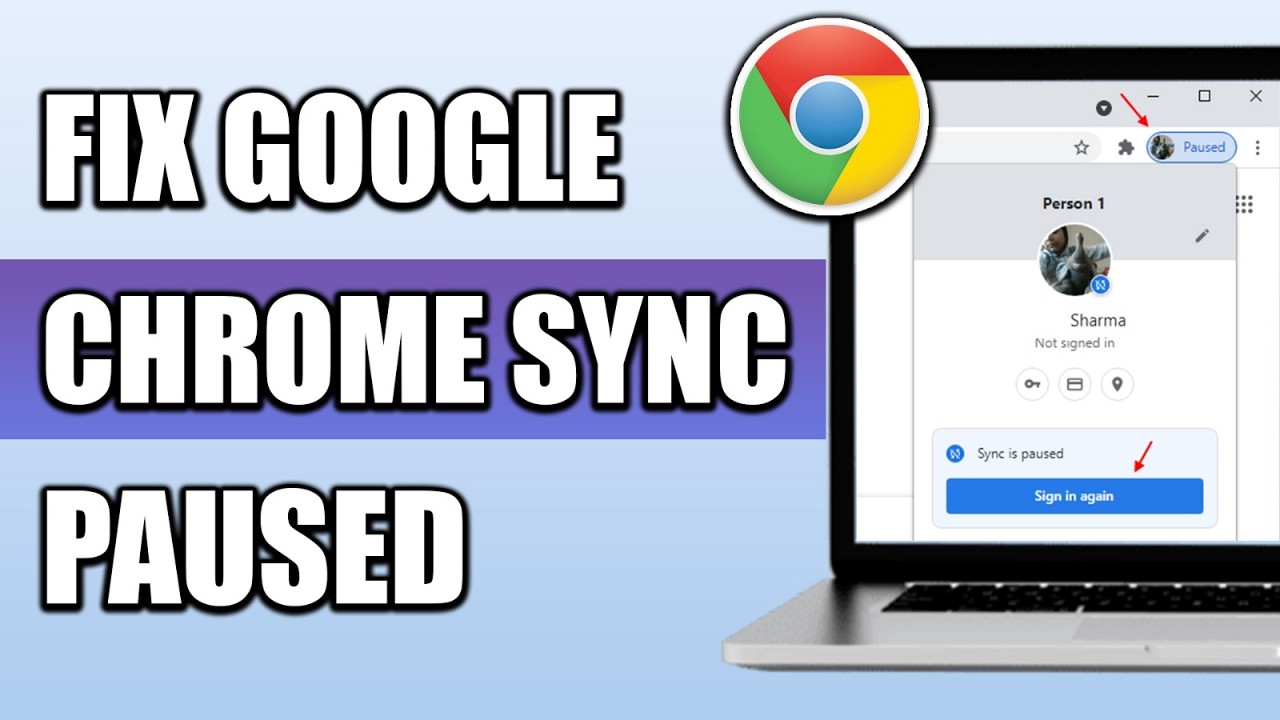
There is nothing quite as quietly infuriating as opening your laptop in the morning, launching Google Chrome, and seeing that familiar yellow “Paused” badge sitting next to your profile picture. You type in your password, approve the two-factor prompt on your phone, and get back to work. Everything runs fine—until you close the browser. The next time you open Chrome, you are right back where you started: signed out, missing your autofill passwords, and staring at that same “Sync is paused” warning.
If this sounds familiar, you are not dealing with a broken Google account. In almost every case, a recurring sync pause is actually a local storage or cookie issue disguised as an account error. Chrome relies on a small authentication token stored on your computer to remember who you are between sessions. When something deletes or blocks that token the moment you shut the last browser window, Chrome assumes you signed out and pauses sync to protect your data.
The good news is that you do not need to live with constant logins. Below, we will walk through the exact, up-to-date fixes to stop Chrome from pausing sync on Windows and Mac.
1. Check Your On-Device Site Data Settings
The single most common reason Chrome pauses sync on exit is a privacy setting that automatically wipes site data when you close your windows. Many older troubleshooting guides tell you to look for a menu called “Cookies and other site data,” which Google has since reorganized in newer Chrome builds.
Here is where the setting lives now:
-
Open Chrome and click the three-dot menu in the top-right corner, then select Settings.
-
Click Privacy and security in the left sidebar.
-
Select Site settings, then scroll down and expand Additional content settings.
-
Click On-device site data.
-
Select Allow sites to save data on your device.
If your browser was previously set to “Delete data sites have saved to your device when you close all windows” or “Don’t allow sites to save data on your device,” Chrome was actively deleting your own Google login cookie every time you exited.
Prefer to keep strict privacy settings? You do not have to sacrifice your privacy across the whole web just to keep Chrome synced. You can leave the auto-delete setting turned on and simply create an exception for Google. Visit accounts.google.com, click the site information icon to the left of the address bar, open Site settings, and set On-device site data to Allow for that domain. Close and reopen Chrome to confirm the fix holds.
2. Stop Signing Out of Individual Google Services
Sometimes, nothing is technically broken at all. Google intentionally links your browser sync state to your active web sessions on Google properties. If you manually sign out of Gmail, Google Drive, or YouTube before closing your browser, Chrome interprets that as a signal that you no longer want your account active on that machine and immediately pauses sync.
If you share a computer with family members or coworkers and sign out of Gmail for privacy, consider using separate Chrome profiles instead. Click your profile icon in the top-right corner and select Add to create a dedicated workspace for each person. That way, you can stay signed in to your own profile without exposing your emails or bookmarks to anyone else.
3. Audit Your Extensions and PC Cleaning Software
If your On-device site data setting is already set to “Allow” and sync still pauses on every restart, something outside of Chrome’s core settings is wiping your session cookies. The usual suspects fall into two categories: browser extensions and third-party system utilities.
Start with your extensions. Privacy tools, cookie auto-deleters, and aggressive ad blockers frequently purge Google authentication cookies on exit. Open chrome://extensions/, toggle all of your extensions off, sign back into Chrome, and restart the browser. If sync stays active, re-enable your extensions one by one—restarting Chrome after each—until you catch the culprit.
Next, check your computer for background maintenance tools. Utilities like CCleaner, system tune-up apps, and the “browser privacy” or “tracker cleaning” modules built into antivirus suites often run automated cookie sweeps when a browser closes. Open your antivirus or cleaning software, look for any browser-cleaning schedule or automatic cookie-deletion feature, and disable it or add Chrome to its exclusion list.
4. Verify Your System Date, Time, and Chrome Profile
Two overlooked culprits can also trigger repeated re-authentication prompts: an inaccurate system clock and a corrupted user profile.
Authentication tokens rely on strict timestamps to verify that a login session is valid. If your computer’s clock drifts out of sync with internet time servers, Google’s servers may reject your session token and pause sync. Head into your Windows or macOS date and time settings and ensure Set time automatically and Set time zone automatically are turned on.
If your clock is accurate, your local Chrome profile folder may be corrupted, preventing Chrome from writing new session data to your hard drive. To test this, click your profile picture in Chrome, select Add, and create a brand-new profile. Sign in to your Google account, turn on sync, and restart the browser. If sync stays active on the new profile, your old profile is damaged, and you can safely migrate to the fresh one.
5. Perform a Clean Reinstall as a Last Resort
If you have tried every step above and Chrome still refuses to remember your login, a standard uninstall and reinstall rarely fixes the problem because it leaves behind your old local user data folder.
To perform a true clean reinstall on Windows:
-
Make sure your bookmarks and passwords are backed up to your Google account.
-
Uninstall Google Chrome through Windows Settings.
-
Open File Explorer and navigate to
C:\Users\[YourUsername]\AppData\Local\Google\Chrome. -
Delete the User Data folder (or the entire Chrome folder).
-
Restart your computer, download a fresh copy of Chrome from Google, and sign back in.
Frequently Asked Questions
Why does Chrome say “Sync is paused” instead of signing me out completely?
Chrome pauses sync so you do not abruptly lose access to your open tabs or local bookmarks while it waits for you to re-verify your identity. Until you sign back in, any new passwords, bookmarks, or history you create stay on that device and will not upload to your other devices.
Will clearing my browser cache and cookies fix the sync paused error?
No—in fact, clearing your cookies manually often makes the problem worse. Because your Google sign-in session is stored as a cookie, wiping cookies forces Chrome to pause sync again. Focus on adjusting your On-device site data settings instead.
Are my saved passwords gone forever when sync pauses?
No. Your passwords are still safely stored in your Google account. They only appear missing locally because Chrome cannot decrypt or sync them until you re-authenticate and restore an active sync session.
Can my antivirus software really cause Chrome sync to pause?
Yes. Many modern antivirus and internet security suites include “privacy protection” or “anti-tracking” features that automatically purge browser cookies when you close Chrome. Disabling automatic cookie deletion inside your antivirus settings usually resolves the issue immediately.
Fixing a perpetually paused Chrome sync comes down to finding what is stripping away your login cookie when the browser closes. In nine out of ten cases, switching On-device site data to allow sites to save data—or turning off an overzealous cookie-cleaning extension or antivirus module—solves the problem for good. Once your browser can hold onto its session token again, your bookmarks, passwords, and tabs will stay seamlessly synced across every device without another frustrating morning login prompt.