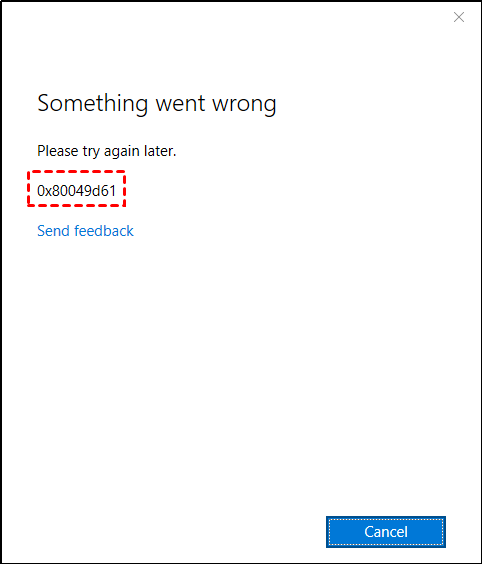
There is nothing quite as frustrating as reaching for an important document or trying to back up a batch of freshly snapped photos, only to be greeted by a vague “Something went wrong – Try again” message in the OneDrive Android app. Even worse, the app might sit there acting like it is syncing indefinitely without actually uploading or downloading a single file.
Before you panic about losing your data, take a breath: your cloud files are almost certainly safe. In most cases, this error has nothing to do with your files disappearing and everything to do with a local hiccup on your phone—such as corrupted temporary files, aggressive Android battery restrictions, an expired sign-in token, or a buggy app update.
If your OneDrive app is refusing to cooperate, work through the practical fixes below in order. They start with the quickest, least disruptive solutions and move toward deeper resets so you can get your files syncing again in minutes.
Check Your Internet Connection and Microsoft Storage Limits
It sounds obvious, yet network hiccups and full storage quotas are behind a surprising number of vague OneDrive errors. OneDrive requires a stable connection to communicate with Microsoft’s servers, and switching between weak Wi-Fi and mobile data can easily stall a sync session mid-transfer. Try toggling Airplane Mode on for ten seconds and then off again, or switch from Wi-Fi to mobile data (or vice versa) to see if the error clears. If you use a VPN or a private DNS ad-blocker, temporarily disable it, as these tools occasionally block Microsoft’s authentication endpoints.
Next, verify two things right away:
-
Confirm your files are intact: Open a mobile web browser like Chrome and sign in to OneDrive on the web. If everything loads normally there, you know the problem is isolated to your Android app rather than a Microsoft server outage.
-
Check your Microsoft storage quota: If your OneDrive or Outlook storage limit is completely full, the app will stop syncing and refuse to upload new files—including your Camera Roll. You can check your remaining space directly on the web or by tapping your profile picture in the app.
Force Stop and Clear the OneDrive App Cache
Every time you browse folders or preview photos in OneDrive, the app stores temporary files (cache) on your phone to help things load faster. Over time, those temporary files can become corrupted, triggering the dreaded “Something went wrong” loop or causing parts of the interface to vanish. Clearing the cache is the fastest way to flush out these glitches without wiping your settings.
-
Open your Android device’s Settings app.
-
Tap Apps (or App Management, depending on your phone brand) and select OneDrive.
-
Tap Force Stop to completely shut down any stuck background processes.
-
Tap Storage (or Storage & cache).
-
Tap Clear Cache.
Reopen OneDrive and check if your files load and sync properly. Notice that we did not tap “Clear Data” just yet—clearing the cache only removes temporary junk files and will not sign you out or delete any documents stored in your cloud.
Adjust Android Battery Optimization and App Permissions
Modern Android smartphones are built to squeeze every last minute out of your battery, and they often do this by putting background apps to sleep. Unfortunately, if Android restricts OneDrive in the background, automatic syncing and Camera Uploads will grind to a halt.
To give OneDrive the breathing room it needs:
-
Disable Battery Saver: Turn off your phone’s system-wide Battery Saver mode, which frequently blocks background data and cloud syncing.
-
Unrestrict OneDrive’s battery usage: Go back to Settings > Apps > OneDrive > Battery and switch the setting to Unrestricted (or manage it manually to allow running in the background).
-
Allow background data: In the same OneDrive App Info screen, tap Mobile data & Wi-Fi (or Mobile data) and ensure Allow background data usage is toggled on.
-
Verify storage permissions: Tap Permissions on the App Info page and make sure OneDrive is allowed to access your Photos and videos (or Files and media / Storage). Without this permission, the app simply cannot read local files to sync them.
Sign Out, Restart, and Re-Authenticate Your Account
Sometimes the issue isn’t your phone’s storage or battery—it’s a broken authentication handshake. If you recently changed your Microsoft password, updated two-factor authentication, or haven’t signed in for months, your app’s background login token can expire silently. Instead of prompting you for a password, the app just throws a generic error.
If you can still access the app’s menu, tap your profile picture, go to Settings > Account, and tap Sign out. Once you are signed out, restart your Android phone completely. After your phone boots back up, open OneDrive and sign back in with your Microsoft credentials. This forces the app to generate a fresh authentication token and re-establish a clean sync connection.
Update or Perform a Clean Reinstall of OneDrive
If none of the steps above resolved the “Something went wrong” message, you are likely dealing with either an outdated app version or a corrupted installation. Occasionally, a newly released OneDrive update itself introduces a bug that breaks syncing on specific Android builds until Microsoft pushes a patch.
First, open the Google Play Store, search for OneDrive, and tap Update if a newer version is available. If you are already on the latest version—or if updating doesn’t fix the loop—perform a full clean reinstall:
-
Go to Settings > Apps > OneDrive.
-
Tap Force Stop.
-
Go to Storage and tap both Clear Cache and Clear Data.
-
Uninstall the OneDrive app from your phone.
-
Restart your device to clear any lingering system memory.
-
Download a fresh copy of OneDrive from the Google Play Store and sign back in.
Frequently Asked Questions (FAQ)
Will clearing OneDrive’s cache or data delete my photos and documents?
No. Clearing the cache only removes temporary files used to speed up the app, and clearing app data simply resets the app to its factory state and signs you out. Your files stored in the OneDrive cloud—and the original photos saved on your phone’s internal storage—remain completely untouched.
Why does OneDrive work in my browser but say “Something went wrong” on Android?
When the web version works fine while the Android app fails, it confirms that your Microsoft account and cloud files are healthy. The problem is strictly local to your phone, usually caused by corrupted app cache, an expired login token, restricted battery settings, or a buggy app update.
Why won’t one specific file upload even after syncing starts working again?
Individual file upload failures usually come down to file rules. OneDrive cannot upload a file if it is currently open in another app, if the filename contains restricted characters (like /, \, *, ?, or :), or if the combined file name and folder path exceeds 442 characters. Shorten the file name or move it closer to a top-level folder and try again.
How do I fix OneDrive Camera Upload when it refuses to sync my photos?
Open OneDrive, tap your profile icon, and go to Settings > Camera upload. Double-check that the toggle is switched on for the correct Microsoft account. If you want photos to back up away from home, make sure Upload using includes your mobile network and verify that Upload only when charging isn’t accidentally checked.
Dealing with a broken cloud sync app can throw off your entire day, especially when you rely on your phone to bridge the gap between work and home. By systematically ruling out network and storage limits, clearing out corrupted cache files, lifting Android’s battery restrictions, and doing a clean reinstall when needed, you can resolve the “Something went wrong” error without putting your files at risk. If the app still refuses to launch after a fresh install, keep an eye on the Google Play Store for a quick patch from Microsoft, and use OneDrive in your mobile browser as a reliable backup in the meantime.