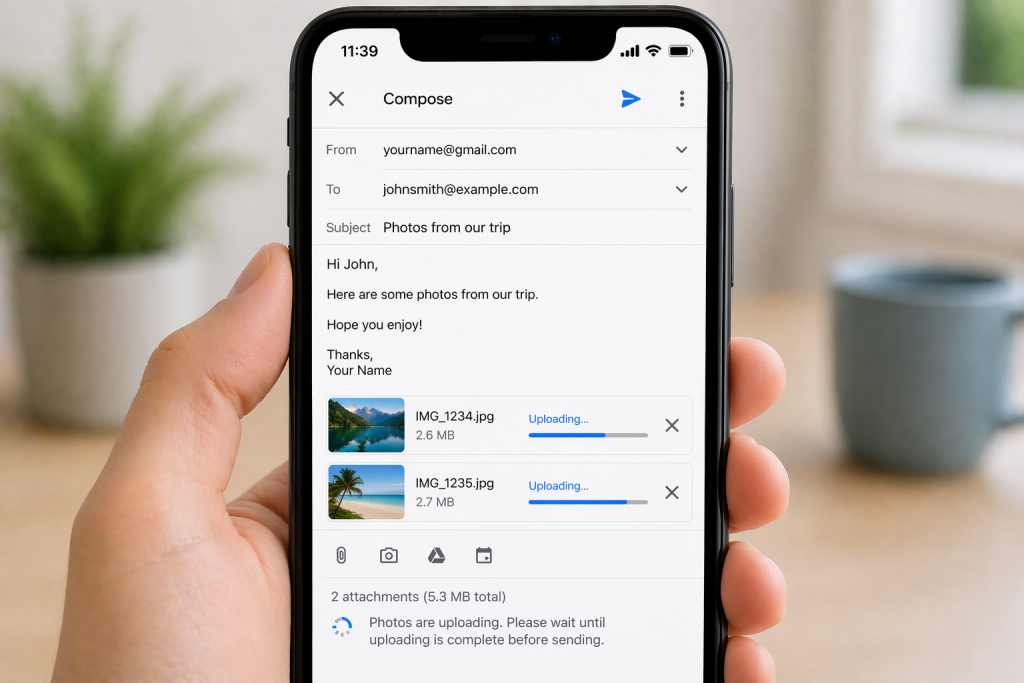
You are away from your desk, trying to send a signed PDF, a receipt, or a quick set of photos from your phone. You tap the paperclip icon, select your file, and hit send—only to watch the progress bar freeze on “Uploading…” or see the message vanish into your Outbox as “Queued.” Even worse, plain text emails go through instantly, and everything works fine the moment you connect to Wi-Fi.
When Gmail attachments refuse to upload over 4G or 5G, the problem is rarely a broken Gmail account. Mobile networks have much stricter upload timeouts than home Wi-Fi, and modern smartphones aggressively throttle background data to save battery and cellular bandwidth. Combine that with hidden file-size math, app cache glitches, or a nearly full storage drive, and your attachment gets trapped in limbo.
Below are the most reliable, step-by-step ways to fix stuck Gmail attachments on both Android and iPhone so you can send files smoothly on the go.
1. Check the Real Attachment Size Limit and Your Storage Space
Before diving into phone settings, rule out the two hard limits that stop Gmail uploads cold: file size and available storage.
Personal Gmail accounts cap outgoing attachments at 25 MB per message. However, there is a catch that trips up almost everyone. Email servers have to convert binary files (like photos and PDFs) into text using Base64 encoding before sending them, which inflates the file size by roughly 33% to 37%. In practical terms, if your combined attachments exceed 18 MB to 20 MB, the encoded email can blow past the 25 MB ceiling and fail to upload. If you are attaching high-resolution smartphone photos, try resizing them or splitting them across two emails.
Next, check two different types of storage:
-
Your Google Account Storage: Gmail shares storage with Google Drive and Google Photos. If your Google storage is full, Gmail cannot upload new attachments and will leave your message sitting in the Outbox.
-
Your Phone’s Internal Storage: Even if your Google cloud has plenty of room, the Gmail app needs free space on your device’s internal memory to temporarily process and encode attachments. If your phone is nearly full, free up at least 1 GB of space and try sending the email again.
2. Turn Off Data Saver and Allow Background Data for Gmail
If your attachments only fail on cellular data and never on Wi-Fi, your phone’s operating system is almost certainly restricting Gmail’s mobile data access. Large uploads take longer over cellular connections, and if you lock your screen or switch apps mid-upload, data-saving features will cut the connection immediately.
On Android:
-
Open Settings and go to Network & internet (or Connections on Samsung devices).
-
Tap Data Saver and toggle it Off. If you prefer to keep Data Saver on, tap Unrestricted data and enable the toggle for Gmail.
-
Next, go to Settings > Apps > Gmail > Mobile data & Wi-Fi (or Mobile data).
-
Make sure Background data is turned On so Gmail can finish uploading files even when you leave the app.
On iPhone (iOS):
-
Open Settings and tap Cellular (or Mobile Service).
-
Scroll down to Gmail and verify that cellular data is toggled On.
-
Tap Cellular Data Options at the top of the Cellular menu, select Data Mode, and switch off Low Data Mode (choose Standard or Allow More Data on 5G).
-
Go back to Settings > General > Background App Refresh and ensure it is enabled for Wi-Fi & Cellular Data, with Gmail switched on.
3. Clear the Stuck Outbox Queue and Reset the Gmail Cache
Once a single attachment stalls, it can clog Gmail’s local Outbox and prevent subsequent emails from uploading cleanly. Clearing out the jammed message and refreshing the app’s temporary files usually breaks the logjam.
-
Open the Gmail app, tap the menu icon in the top-left corner, and open the Outbox folder.
-
Delete the stuck or “Queued” message (copy any text you wrote first so you do not lose it).
-
On Android: Go to Settings > Apps > Gmail, tap Force stop, then tap Storage & cache > Clear cache. Avoid tapping “Clear storage” right away, as that resets your app preferences and forces you to re-sync your accounts.
-
On iPhone: iOS does not have a single “Clear cache” button, so force-close Gmail from the app switcher, check the App Store for a Gmail update, or uninstall and reinstall the app to wipe corrupted temporary files.
-
Restart your phone, open Gmail, and re-attach your file from scratch.
4. Check App Permissions and Refresh Your Cellular Connection
Modern Android updates introduced stricter privacy controls for photos and media. If Gmail only has permission to access “Selected photos” rather than your full library, the app can occasionally hang when trying to pull a file from your gallery or file manager. On Android, navigate to Settings > Apps > Gmail > Permissions > Photos and videos (and Files and media if listed) and set access to Allow all.
If permissions look fine, reset your cellular handshake. Weak or congested cell towers often have decent download speeds for browsing, yet terrible upload speeds that cause Gmail to time out. Turn Airplane Mode on for 15 seconds, then turn it off to force your phone onto a cleaner tower signal. Also, temporarily pause any active VPN, ad-blocking app, or custom Private DNS setting—these tools frequently intercept or slow down mobile upload packets enough to trigger a failure.
5. Use Google Drive as a Reliable Mobile Workaround
When you are dealing with a patchy 4G signal or a file that is close to 20 MB, raw email attachments are simply the wrong tool for the job. Standard email uploads do not handle signal drops gracefully; if your connection flickers at 90%, the upload often restarts from zero or fails completely.
Instead, upload the file to the Google Drive app first, which handles interrupted mobile uploads far better. Once it finishes, open your draft in Gmail, tap the paperclip icon, and choose Insert from Drive. Gmail will attach a lightweight link that sends almost instantaneously—just remember to confirm the sharing permissions so your recipient can actually open the file.
Frequently Asked Questions
Why do my Gmail attachments send on Wi-Fi but fail on mobile data?
Mobile networks typically have slower, less stable upload speeds than Wi-Fi, making large attachments prone to timeouts. Additionally, features like Android’s Data Saver, iPhone’s Low Data Mode, and restricted background data specifically throttle apps over cellular connections while leaving Wi-Fi untouched.
Will clearing the Gmail app cache delete my emails or drafts?
No. Clearing the cache on Android only removes temporary files that help the app load faster. Your emails, sent messages, and synced drafts remain safely stored in your Google account. (Just be sure to save any unsent text sitting in your local Outbox before deleting a stuck message.)
Why does a 20 MB file fail when Gmail’s limit is 25 MB?
Email systems use Base64 encoding to transmit attachments safely, which increases the raw file size by roughly a third during transit. A 20 MB file can expand to around 27 MB once encoded, pushing it over Gmail’s 25 MB outgoing limit. Keep direct attachments under 18 MB, or share larger files via Google Drive.
What should I do if my email is stuck in the Outbox as “Queued”?
Open the Outbox in the Gmail app, delete the queued message, and verify that your Google storage and phone storage are not full. Then clear the Gmail app cache, toggle Airplane Mode on and off, and compose the email again.
Getting a Gmail attachment unstuck on mobile data almost always comes down to removing whatever is choking the upload. By keeping raw attachments under 18 MB, turning off Data Saver restrictions for Gmail, clearing a jammed Outbox cache, and leaning on Google Drive for heavier files, you can eliminate endless “Uploading…” loops and send important documents reliably from anywhere.