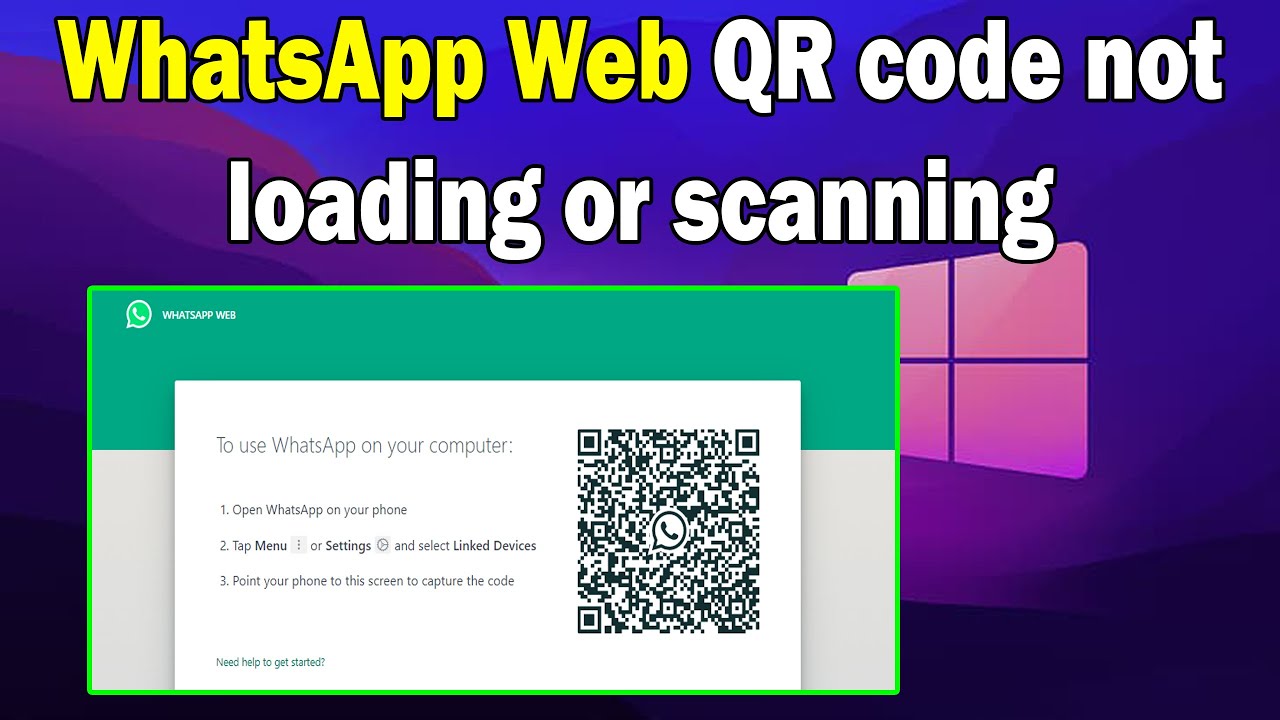
You open web.whatsapp.com on your computer to reply to a few messages while you work, only to be greeted by an endlessly spinning gray wheel where the QR code should be. Or worse, you scan the code, get inside your chats for ten minutes, and then suddenly get kicked back out to the login screen every single time you close a tab or step away from your desk.
When WhatsApp Web refuses to generate a QR code or keeps logging you out on Google Chrome, the issue is almost never an outage on WhatsApp’s servers. WhatsApp Web runs as a live, encrypted web application inside your browser. To display a fresh QR code, it needs an uninterrupted WebSocket connection to WhatsApp’s servers. To keep you signed in between sessions, it relies on Chrome storing a local encryption key and session token inside your browser’s site data. If a browser extension blocks that connection, a privacy setting wipes your local storage on exit, or your phone hits its linked-device limit, WhatsApp Web breaks down in predictable ways.
Below are the clearest, most effective fixes to get your QR code loading immediately and stop unexpected logouts on Chrome.
1. Fix a Spinning or Missing WhatsApp Web QR Code
If the QR code box keeps spinning forever or displays a “Click to reload QR code” prompt that never resolves, something is interrupting the live connection between Chrome and WhatsApp’s servers.
Work through these quick checks in order:
-
Disable Your VPN, Proxy, or Custom DNS: WhatsApp Web uses real-time WebSocket connections that many VPN servers, corporate firewalls, and strict DNS filters (such as aggressive Pi-hole blocklists or Cloudflare WARP configurations) throttle or block. Disconnect your VPN temporarily and refresh
web.whatsapp.comwith Ctrl + R (or Cmd + R on Mac). -
Turn Off Ad Blockers and Privacy Extensions for WhatsApp: Extensions like uBlock Origin, Privacy Badger, Ghostery, and script blockers occasionally misidentify WhatsApp’s dynamic QR code script as a tracker. Click your extension icons in Chrome’s top-right toolbar and pause or whitelist
web.whatsapp.com. -
Test in a Chrome Incognito Window: Press Ctrl + Shift + N (or Cmd + Shift + N on Mac) and open
web.whatsapp.com. Because Incognito disables extensions by default and starts with clean temporary storage, an instant QR code here proves that a Chrome extension or corrupted site cache is the culprit. -
Toggle Hardware Acceleration: Sometimes Chrome’s GPU rendering glitches when drawing dynamic canvas elements like QR codes. Open Chrome Settings > System, toggle Use graphics acceleration when available off (or on, if it was already off), and click Relaunch.
2. Stop WhatsApp Web From Logging Out Every Time You Close Chrome
If your QR code loads fine, you scan it, and everything works until you close Chrome—only to find yourself logged out the next time you open the browser—Chrome is deleting your local WhatsApp session token when you exit.
To make sure Chrome remembers your linked session:
-
Open Google Chrome and click the three-dot menu in the top-right corner, then select Settings.
-
Click Privacy and security in the left sidebar.
-
Select Site settings, scroll down, and expand Additional content settings.
-
Click On-device site data.
-
Make sure Allow sites to save data on your device is selected. If it is set to “Delete data sites have saved to your device when you close all windows,” Chrome wipes your WhatsApp login key every time you shut the browser.
-
Want to keep auto-delete turned on for other websites? Leave your global setting alone, scroll down to Allowed to save data on your device, click Add, type
[*.]whatsapp.com, and click Add again.
Also, check any third-party PC cleaning utilities (such as CCleaner) or antivirus “browser privacy” modules. Many of these tools automatically purge Chrome’s local storage and IndexedDB files whenever you close your browser, which immediately unlinks WhatsApp Web.
3. Clear Corrupted WhatsApp Site Data Without Wiping Your Whole Browser
If you used to stay signed in without trouble and suddenly started getting booted out mid-session, your local WhatsApp IndexedDB database inside Chrome may be corrupted. You do not need to clear your entire browser history or lose your saved passwords on other sites to fix this.
-
Open
web.whatsapp.comin Chrome. -
Click the View site information icon (the tune/slider icon) directly to the left of
web.whatsapp.comin the address bar. -
Click Site settings.
-
At the top of the page, click Delete data (or Clear data), then confirm by clicking Delete.
-
Close the tab, open a fresh tab to
web.whatsapp.com, and scan the newly generated QR code with your phone.
Clearing just the site-specific storage removes damaged local message caches while leaving your Gmail, banking, and other browser logins completely untouched.
4. Check Your Phone’s Linked Devices Limit and Battery Settings
Sometimes the logout is triggered from your smartphone rather than Chrome. WhatsApp allows you to link up to four companion devices (browsers, desktop apps, or secondary tablets) to a single primary phone account at one time.
-
Check Your Linked Devices List: Open WhatsApp on your phone, go to Settings (or the three-dot menu on Android) > Linked Devices. If you already have four devices listed—perhaps old work laptops or forgotten browser sessions—scanning a new QR code will either fail or automatically kick out one of your active sessions. Tap any outdated sessions and choose Log out to free up space.
-
Verify “Keep me signed in” Is Checked: Right beneath the QR code on
web.whatsapp.com, ensure the Keep me signed in checkbox is ticked before scanning. If unchecked, WhatsApp treats the session as temporary and logs you out shortly after you close the tab. -
Update WhatsApp on Your Phone: An outdated mobile app can fall out of sync with newer Web encryption protocols, causing unexpected session drops. Visit the Google Play Store or Apple App Store and install any pending WhatsApp updates.
Frequently Asked Questions
Why does WhatsApp Web say “Click to reload QR code” over and over?
This happens when Chrome cannot maintain a steady connection to WhatsApp’s servers to refresh the temporary login token. The most common causes are an active VPN or proxy, a strict ad blocker or privacy extension, or an unstable Wi-Fi network blocking WebSocket traffic.
Does WhatsApp Web still require my phone to stay online all the time?
No. With WhatsApp’s multi-device architecture, your linked Chrome browser stays connected even if your phone loses internet access or runs out of battery. However, if you do not open WhatsApp on your primary phone for more than 14 days, WhatsApp automatically logs out all linked devices for security.
Will clearing WhatsApp site data in Chrome delete my chat history?
No. Your actual chat history lives on your primary phone (and in your phone’s cloud backup). Clearing WhatsApp’s site data in Chrome only removes the local browser cache and forces you to scan the QR code once more to re-sync your messages.
Why does WhatsApp Web log me out even when I leave the tab open?
Sudden mid-session logouts usually point to one of three things: someone logged into a fifth companion device and bumped your session off the four-device limit, your IP address changed abruptly via a VPN reconnection, or a browser extension cleared your site storage in the background.
A missing QR code or a constant logout loop on WhatsApp Web rarely requires reinstalling Chrome or resetting your phone. By pausing interfering VPNs or extensions to let the QR code load, allowing whatsapp.com to save on-device site data in Chrome, and keeping your linked devices list under the four-device limit, you can keep your desktop chats connected reliably day after day.