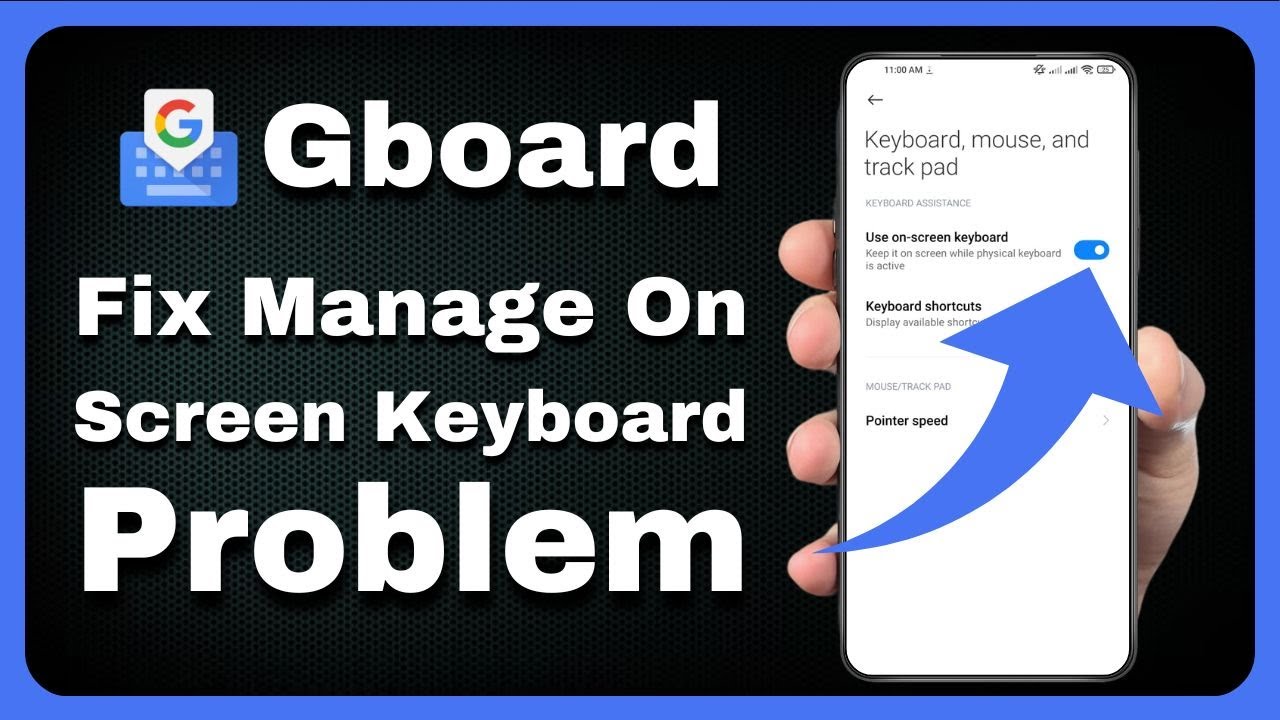
Few things feel more irritating right after installing a major operating system upgrade than tapping a search bar and staring at an empty space where your keyboard should be. Last week, right after my phone finished updating to Android 17, I tapped the home screen search bar to look up a quick address and nothing happened. The search box highlighted, the cursor blinked quietly, and the virtual keyboard stayed completely hidden.
If you are dealing with the exact same glitch, you are definitely not alone. Major Android releases often shift how launchers, system services, and input methods communicate, which can occasionally stop the virtual keyboard from triggering inside search fields. The good news is that most cases clear up with straightforward settings tweaks and don’t require wiping your phone.
Why Search Bars Stop Triggering Your Keyboard After Android 17
Search bars behave a little differently than standard text boxes in messaging or note apps. Many home screen and app drawer search bars rely on launcher overlays or quick-search services that focus the text field before the input method service finishes initializing.
After a major update like Android 17, stale cache files, altered launcher search settings, or background permission states can break that handoff. Sometimes the keyboard pops up everywhere else—like inside WhatsApp or Gmail—yet refuses to appear in the home screen search bar or browser address bar.
-
Stale keyboard or launcher cache: Old temporary files from before the update can clash with new system behaviors.
-
Home search keyboard toggle glitches: Launcher search settings sometimes lose their state during OS upgrades.
-
Third-party keyboard or accessibility conflicts: Extra input apps or overlay tools can block the active keyboard from launching smoothly.
-
Navigation or animation quirks: Switching navigation styles or adjusting animation speeds in developer options can occasionally interfere with input focus.
Quick Diagnostic Check Before Changing Settings
Before diving into deeper fixes, spend thirty seconds testing where the problem happens. Tap a search bar on your home screen, try a search bar inside a browser or app store, and tap a regular message box in a chat app.
If the keyboard never appears anywhere, the issue is likely tied to your active keyboard app or system input service. If it works in chat apps but fails specifically in search bars, focus on launcher search settings, app caches, and search-related apps.
Step-by-Step Fixes That Often Solve the Issue
Start with the least disruptive steps first so you don’t reset preferences unnecessarily. On my device, clearing the keyboard cache and re-toggling the launcher’s search keyboard setting got things moving again without touching my personal dictionary.
1. Restart Your Phone and Check for Updates
A clean reboot flushes stuck background processes left over from the Android 17 installation. Once your phone boots back up, open the Google Play Store (or your manufacturer’s app store) and update your keyboard app as well as your Google or launcher apps.
-
Press and hold the power button (or power + volume up on newer devices) and tap Restart.
-
Open your app store, go to Manage apps & device, and install available updates for Gboard, Samsung Keyboard, or your preferred input app.
-
Tap a search bar to see if the keyboard now appears automatically.
2. Force Stop and Clear Cache on Your Keyboard App
Corrupted temporary files frequently cause input lag or silent failures after a system upgrade. Clearing cache removes temporary files while keeping your saved words and personal settings intact.
-
Open Settings > Apps > See all apps.
-
Select your active keyboard (such as Gboard or Samsung Keyboard).
-
Tap Force stop and confirm.
-
Tap Storage & cache, then tap Clear cache.
3. Toggle Home Screen Search Keyboard Settings
If the trouble is isolated to your home screen or app drawer search bar, your launcher’s search behavior may need a gentle nudge. Toggling the option off, backing out, and turning it back on often refreshes how the search bar calls the keyboard.
-
Touch and hold an empty space on your home screen and open Home settings.
-
Look for Search settings or App search options.
-
Toggle Show keyboard (or similar search keyboard option) off, wait a moment, and toggle it back on.
-
Return to the home screen and tap the search bar to verify the keyboard slides up.
4. Clear Cache on Your Launcher and Search App
Sometimes the search bar itself—not the keyboard—is holding onto bad state data from before the update. Clearing cache on your launcher and the main Google app can help smooth out search bar focus.
-
Go to Settings > Apps > See all apps.
-
Locate your system launcher (such as Pixel Launcher or One UI Home) and tap Storage & cache > Clear cache.
-
Repeat Clear cache for the Google app if you use the Google search bar.
-
Test the search bar again to confirm the keyboard opens cleanly.
5. Check Default Keyboard and Physical Keyboard Settings
Android 17 can occasionally reset input preferences or treat a connected accessory or virtual toggle in an unexpected way. Double-checking your active keyboard selection takes less than a minute and rules out a simple misconfiguration.
-
Open Settings > System > Keyboard (or General management on Samsung devices).
-
Tap On-screen keyboard and verify your main keyboard is switched on.
-
Check Physical keyboard settings and ensure Show virtual keyboard is enabled if anything similar appears.
-
Tap a search field to confirm your chosen keyboard is active and responding.
6. Test in Safe Mode and Check Navigation or Animation Tweaks
If none of the steps above work, a third-party app, accessibility service, or custom tweak could be interfering with the input window. Booting into Safe Mode temporarily pauses downloaded apps so you can see whether outside software is causing the conflict.
-
Open the power menu, press and hold Power off, and tap Safe mode to reboot.
-
Test the search bar in Safe Mode; if the keyboard appears normally, an installed app or overlay is likely interfering.
-
If you use Developer options and set animation scales to
0x, try setting them to0.5xor1xto see if that restores smooth keyboard pop-ups. -
Restart your phone normally once you finish testing.
Common Mistakes People Make When Troubleshooting
When a frustrating bug hits right after an OS update, it is easy to jump straight to extreme measures. Over the years of fixing Android quirks, I have seen a few avoidable mistakes waste people’s time:
-
Jumping straight to a factory reset: Wiping your phone erases everything and often doesn’t fix an OS-level search bar bug if the glitch returns after restoring apps.
-
Clearing app data before clearing cache: Tapping Clear storage or Clear data wipes custom settings, learned words, and preferences, whereas Clear cache is safer to try first.
-
Disabling or uninstalling your only keyboard without a backup: If you remove your only keyboard app before having another one ready, typing anywhere becomes much harder.
-
Blaming the search bar when a floating or hidden mode is active: Sometimes a keyboard is tucked away or misbehaving due to a single app process that just needs a force stop.
Practical Tips to Prevent Future Update Glitches
You cannot completely eliminate post-update bugs, as software releases vary across phone models and carriers. Still, a few habits can reduce the odds of running into input issues after future updates:
-
Give your phone a few minutes after a major update finishes so background indexing and app optimizations settle.
-
Keep your keyboard app and core system apps updated through your official app store.
-
Avoid installing multiple keyboard or screen-overlay apps unless you actively use them.
-
Keep a second trusted keyboard installed as a backup just in case your primary keyboard acts up after an update.
Wrap-Up
Dealing with a keyboard that refuses to show up in search bars after the Android 17 update can slow down everything you do on your phone. Most of the time, restarting your device, clearing temporary cache files, checking home search settings, and ruling out third-party interference can help get your typing flow back without extreme resets. Take it one step at a time, test after each change, and give your phone a moment to settle as newer patches roll out.
Frequently Asked Questions
Why does my keyboard show up in messages but not in the search bar after Android 17?
Search bars often interact with launcher overlays or search services differently than standard text boxes. Clearing the cache on your keyboard, launcher, and search app—and checking home screen search settings—may help resolve that mismatch.
Will clearing Gboard or keyboard cache delete my saved words?
Clearing the cache generally only removes temporary files and often keeps your personal dictionary and preferences intact. Clearing data or storage, by contrast, resets app settings and learned words back to default.
Should I factory reset my phone if the keyboard bug continues?
A factory reset is usually unnecessary for a post-update keyboard glitch and can be frustrating if the bug comes back after reinstalling apps. Trying Safe Mode, checking updates, and waiting for a follow-up patch is often a better starting point.
Can a third-party app stop the on-screen keyboard from opening?
Yes, certain apps that draw over other screens, manage accessibility features, or alter input behavior can occasionally conflict with the keyboard. Testing in Safe Mode can help you spot whether an installed app is part of the problem.