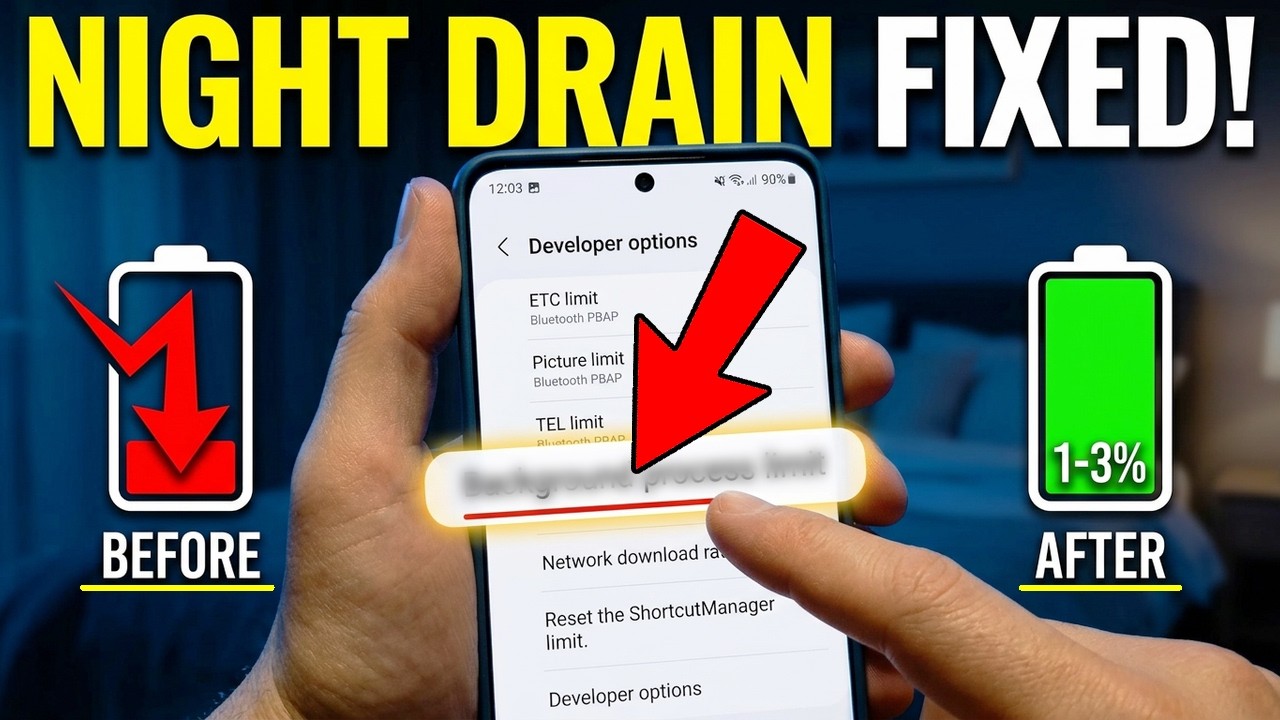
A few weeks ago, I went to bed with my Android 17 phone sitting at 84% battery, resting face down on my wooden nightstand so incoming notifications wouldn’t light up the room. When I picked it up at 7:00 AM, it had dropped to 58%—even though I hadn’t touched it once during the night.
What made it stranger was that when I left the same phone face up the next night, it only lost about 4%. If you are trying to figure out how to fix overnight idle battery drain on Android 17 when phone lies face down, you are dealing with a specific interaction between screen-orientation sensors, wake events, and background processes.
Why a Face-Down Android 17 Phone Can Drain Overnight
On paper, placing a phone face down sounds like it should save battery because you aren’t looking at the display. In practice, face-down orientation can trigger subtle edge cases on modern Android builds.
Proximity, ambient light, and accelerometer/gyroscope sensors work together to detect whether your device is in a pocket, on a table, or facing downward. If a sensor fails to settle or an app keeps waking the screen or processor despite the orientation, overnight standby drain can climb noticeably.
Sensor Loops and Wake Locks
When a phone lies face down on a desk, nightstand, or soft bedding, light sensors read near-zero brightness while motion sensors stay still. Sometimes a buggy app, gesture service, or launcher keeps polling sensors or holding a wake lock that prevents deep sleep (Doze).
Flip-to-Shh, Pocket Detection, and Notification Wakes
Features like Flip to Shh (or similar face-down Do Not Disturb gestures), pocket detection, and ambient wake features rely on orientation logic. If notifications keep lighting up the display or triggering vibration/haptic routines even while face down, those repeated wake cycles can add up over seven or eight hours.
Step-by-Step Fixes for Face-Down Overnight Battery Drain
When I tracked down my own overnight drop, I started with quick sensor and setting checks before digging into app behavior. These steps can often help cut excessive overnight standby drain.
1. Check Battery Usage Details Before Changing Everything
Before tweaking multiple settings, check what actually ran while you slept so you have a clear baseline.
-
Open Settings > Battery > Battery usage (menu labels vary slightly by manufacturer).
-
Look at the timeline or app list covering your sleeping hours to see if a specific app or System process stayed active.
-
Note whether screen-on time rose overnight due to notifications waking the display.
Verification: You can see which apps or system items registered background or screen-on activity during your sleep window.
2. Review Face-Down Gestures and Flip-to-Shh
Orientation-based features are helpful during the day, but testing them when they misbehave overnight is an easy first check.
-
Open Settings > System > Gestures (or search Flip / Do Not Disturb in Settings).
-
Temporarily toggle off Flip to Shh or any face-down sound/notification gesture for one night.
-
Check Settings > Notifications to prevent non-essential apps from waking the screen when alerts arrive.
Verification: Your phone remains quiet and avoids unnecessary display or gesture wake-ups while resting face down.
3. Restrict Background Battery on Chat, Social, and Utility Apps
Apps that constantly sync messages, location, or cloud backups in the background can keep your modem and CPU awake overnight.
-
Go to Settings > Apps > See all apps.
-
Tap any app that appeared high on your overnight battery list (especially social, messaging, weather, or fitness apps).
-
Tap App battery usage and set it to Restricted or Optimized as appropriate for apps you do not need running constantly at night.
Verification: Background active time for non-essential apps drops noticeably after the next overnight cycle.
4. Turn Off Always-On Display or Limit Screen Wake Triggers
Even if a screen looks dark face down on a hard surface, wake triggers or Always-On features can still draw power if not calibrated properly.
-
Open Settings > Display & touch (or Lock screen).
-
Disable Tap to check phone or Lift to check phone if they trigger false wakes near a table edge or bedding.
-
Test turning off Always-On Display for a single night to see if standby drain improves.
Verification: Overnight screen-on time stays near zero between the hours you put the phone down and pick it up.
5. Restart the Phone and Check for System Updates
A stuck background service or sensor daemon often clears up after a simple reboot. Android 17 security and system patches also periodically address modem, sensor, and Doze standby bugs.
-
Restart your Android 17 phone before going to sleep.
-
Check Settings > System > System update (and Security & privacy > System & updates > Google Play system update) for available updates.
-
Place the phone face down in the same spot and compare the morning percentage.
Verification: The phone boots cleanly and holds a steadier battery level over a full 7–8 hour idle window.
Common Mistakes That Skew Overnight Battery Tests
When troubleshooting standby drain, small habits can make a normal battery look faulty—or hide the real culprit.
-
Testing on soft bedding or thick cases: Soft mattresses or thick covers can trap warmth and cause minor movement/proximity shifts compared to a flat table.
-
Leaving background downloads or cloud backups running: A large photo backup or app update starting right as you go to sleep can skew overnight numbers.
-
Changing five toggles in one night: If you turn off Wi-Fi, change battery modes, and restrict apps all at once, you will not know which fix actually worked.
-
Comparing a single night to a week: One rogue app sync or weak cellular signal night happens occasionally; look at a two- to three-night pattern.
Real-Life Scenarios: Adjusting to Your Nighttime Setup
How you fix overnight drain often depends on where and how you leave your phone at night.
-
Weak indoor cellular signal: If your bedroom has poor reception, your phone’s cellular radio may work harder to stay connected overnight; turning on Wi-Fi and Airplane mode (with Wi-Fi re-enabled if needed) can sometimes reduce radio drain.
-
Heavy messaging or work accounts: If a messaging or email app keeps waking the device for low-priority alerts, silencing non-urgent channels during sleep hours often helps.
-
Testing face-down vs. face-up: If your phone drains noticeably faster face down than face up on the exact same surface, focus first on gesture sensors, screen wake toggles, and apps that react to orientation or notifications.
Wrap-Up
Solving overnight idle battery drain on Android 17 when phone lies face down comes down to checking battery stats, ruling out misbehaving gestures or wake triggers, and keeping background apps from holding the device awake. Most of the time, it is a software or sensor-interaction quirk rather than a defective battery.
Try changing one or two settings per night—starting with battery usage checks, gesture/wake toggles, and background app restrictions—and see how your morning percentage looks after a couple of nights.
Frequently Asked Questions
How much battery drain is normal for an Android phone overnight?
A healthy Android phone in good signal conditions often loses around 3% to 8% over an 7–8 hour night when left idle, though results vary by device age, background syncs, and network signal strength. A sudden jump to 15%–25%+ overnight usually points to an active background process, wake loop, or weak signal.
Does placing an Android phone face down use more battery than face up?
It should not normally use more battery, and sometimes face-down behavior is identical to face-up. However, orientation-based features, false screen wakes, or apps interacting with proximity and motion sensors can occasionally cause higher drain when lying face down.
Will turning on Do Not Disturb stop overnight battery drain?
Do Not Disturb can quiet sounds and pop-ups, which may help if frequent notifications are waking your screen or triggering alerts. It does not always stop background syncs or rogue apps on its own, so pairing it with battery usage checks is usually more effective.
When should I suspect a hardware or battery issue?
If overnight drain remains steep even after checking battery stats, restricting background apps, testing face-up vs. face-down, and restarting—or if the phone gets warm idle or shuts down unexpectedly—having a technician test the battery health is a sensible next step.