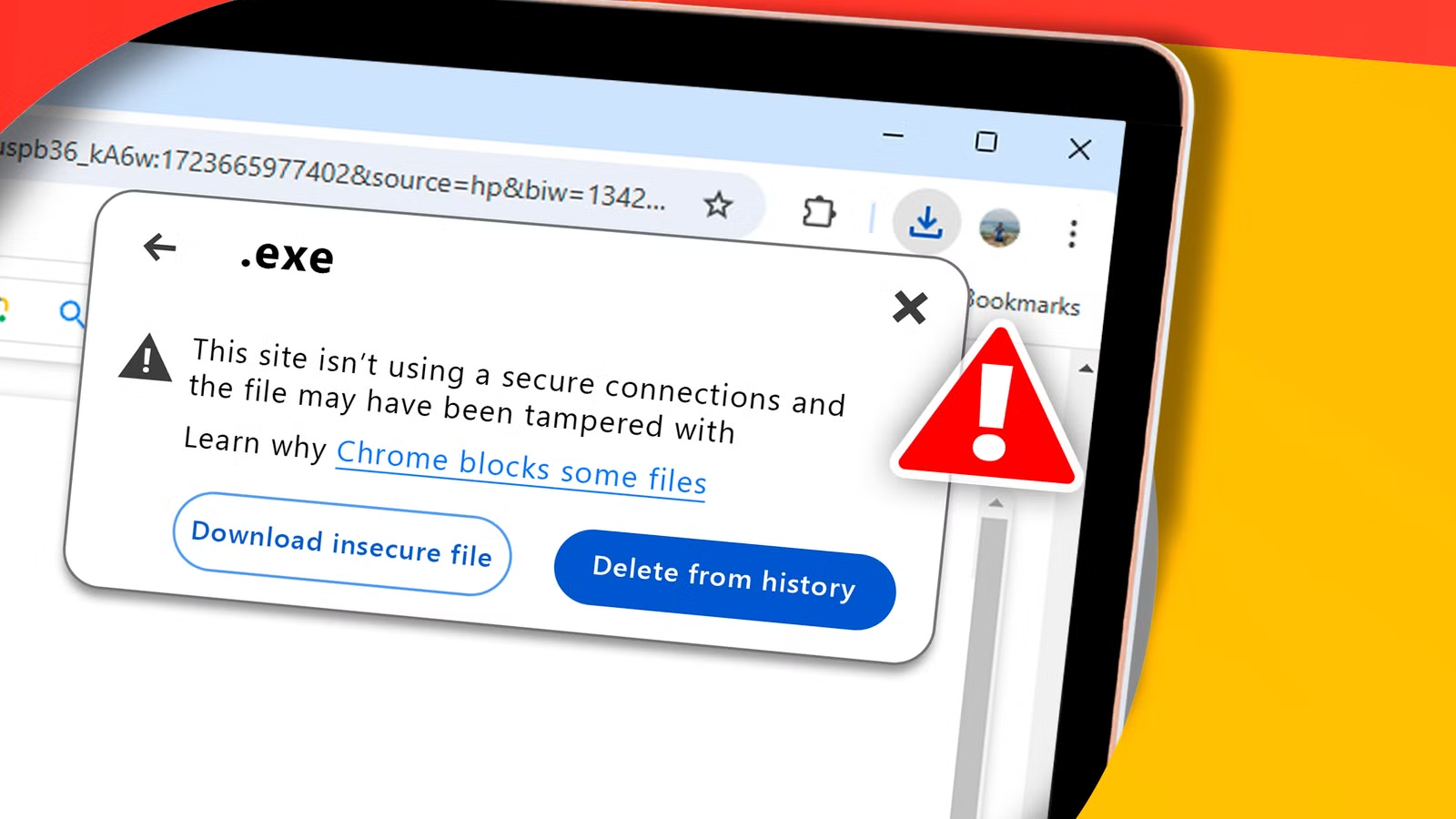
Last month, I was trying to grab a PDF invoice and a ZIP archive from a client portal on my Android phone before hopping on a train. Every single time I tapped a secure https:// download link, the download bar popped up for half a second and immediately failed—even though the webpage itself loaded fine.
It was frustrating because I had plenty of storage and a solid internet connection, yet files wouldn’t even start transferring. If you are stuck figuring out how to fix Android browser downloads failing instantly over secure HTTPS links, the problem usually comes down to a mismatch between security checks, browser permissions, or network/storage handling rather than a dead link.
Why Secure HTTPS Downloads Fail Immediately on Android
An https:// link encrypts the connection between your browser and the server, and Android adds extra layers of security and file-handling checks before saving anything to your device. When one of those checks trips, the download can abort before a single megabyte comes through.
Date, Time, and Certificate Validation Hiccups
Encrypted HTTPS connections rely on security certificates that have valid start and expiration dates. If your Android phone’s clock is off or set to a wrong time zone—sometimes after travel or a battery pull—the system can reject a secure handshake or fail to complete the download cleanly.
Safe Browsing, Extensions, or Content Blockers
Modern Android browsers inspect download URLs and file types to protect you from harmful files. Overly aggressive ad blockers, private DNS filters, or strict security toggles can occasionally block legitimate https:// file endpoints right after the click.
Download Manager, Cache, or Storage Permission Glitches
Android browsers often hand off files to the system Download Manager or write temporary files to local storage. A corrupted browser cache, a stuck download service, or a restricted storage/notification permission can cause an instant failure even when storage space looks available.
Step-by-Step Fixes for Instant HTTPS Download Failures
When I tracked down my own failed HTTPS downloads, I started with quick browser and time checks before touching network settings. Depending on your browser and Android version, these steps often help get downloads moving again.
1. Verify Date, Time, and Automatic Time Zone
A small clock drift can quietly interfere with secure connections and session tokens tied to download links.
-
Open Settings > System > Date & time (menu wording varies slightly by brand).
-
Turn on Use network-provided time and Use network-provided time zone.
-
Return to your browser, reload the page, and try the HTTPS download again.
Verification: Your phone displays the accurate local time and time zone, and the test download progresses past the first second.
2. Clear Browser Cache and Check Download Permissions
Stale cache entries or blocked permissions can interrupt how the browser saves files from secure pages.
-
Open Settings > Apps > See all apps and select your browser (such as Chrome, Brave, or Edge).
-
Tap Permissions and confirm Files and media (or Storage / Photos and videos) and Notifications are allowed where applicable.
-
Tap Storage & cache > Clear cache (avoid Clear storage/data first if you want to keep open tabs and logins).
Verification: Cache size resets to a low baseline and the browser’s required permissions remain enabled.
3. Test in an Incognito/Private Tab or Disable Content Blockers
Some download portals use redirects or tokens that break when third-party cookies, script blockers, or ad filters strip headers.
-
Open a new Incognito or Private tab in your Android browser.
-
Temporarily pause any built-in shields, ad blockers, or VPN/Private DNS filtering for that site.
-
Tap the
https://download link to see if it starts normally.
Verification: The file begins downloading in the private window without an immediate “Failed” or “Couldn’t download” message.
4. Check Private DNS, VPNs, and Captive Wi-Fi Networks
Public Wi-Fi portals, corporate firewalls, or custom DNS/VPN routing can block specific file servers while letting normal web pages load.
-
Open Settings > Network & internet (or Connections) and check Private DNS and any active VPN.
-
Switch temporarily to Off or Automatic, or test switching between Wi-Fi and mobile data.
-
Retry the download link once the connection settles.
Verification: The download completes over the alternate connection or with DNS/VPN filtering temporarily paused.
5. Restart the Browser and Check the Downloads App
If the system download queue is wedged, restarting the browser—or the phone—can clear stuck jobs.
-
Force-close your browser from Settings > Apps or the recent apps switcher.
-
Open the Files or Downloads app to clear any stuck or failed partial entries.
-
Reopen the browser and test a known working HTTPS file link.
Verification: Stuck entries are cleared and new downloads appear cleanly in your Downloads folder.
Common Mistakes That Make Troubleshooting Harder
When I first tried fixing my downloads, I repeated a few habits that slowed me down.
-
Assuming every instant failure is the browser: Sometimes a website’s download link expires quickly or requires you to be signed in before the
https://file URL responds. -
Wiping all browser data on step one: Clearing site data logs you out of portals and can make reproducing a login-protected download harder.
-
Testing on a flaky captive Wi-Fi network: Hotel, airport, or cafe networks often block certain file types or ports even when basic browsing works.
-
Changing multiple settings at once: Toggling VPNs, clearing cache, and changing DNS simultaneously makes it tough to tell which change actually solved the issue.
Real-Life Scenarios: How Context Changes the Fix
The right fix often depends on where the file lives and how you are connected.
-
Downloading invoices or account statements: If a bank or billing site fails right after login, test in a standard tab with pop-up/redirect blockers relaxed for that domain—many portals redirect through a temporary
https://token URL. -
Using public or office Wi-Fi: If downloads fail on office or campus Wi-Fi but work on mobile data, a local network policy or firewall rule may be blocking direct file downloads.
-
Large ZIP or media archives: If small files work but large archives fail right away, check available free storage and ensure you are not on a restricted data saver mode that blocks large transfers.
Wrap-Up
Figuring out how to fix Android browser downloads failing instantly over secure HTTPS links usually comes down to checking simple items first: accurate date and time, browser cache and permissions, content blockers or VPN/DNS filters, and network stability. Most of the time, it is a configuration or network hiccup rather than a broken phone.
Work through one adjustment at a time and test with a clean download attempt so you can spot what restores normal behavior.
Frequently Asked Questions
Why does a webpage load over HTTPS on Android, but the file download fails immediately?
Loading a webpage and downloading a file can use different server paths, redirects, or security checks. A security filter, DNS/VPN block, expired link token, or download permission issue can stop the file transfer even when the main page loads fine.
Can Private DNS or a VPN cause HTTPS downloads to fail?
Yes, certain DNS filters or VPN routes can block or time out specific download hosts or redirect chains. Temporarily disabling Private DNS or pausing your VPN during a test can help confirm whether it is interfering.
Does clearing browser cache delete my downloaded files?
No, clearing browser cache removes temporary web files and cached images—it does not delete files that have already finished saving to your Downloads folder. Just be careful not to confuse Clear cache with Clear all site data if you want to keep active sessions.
What if the download still fails across every browser on my Android phone?
If Chrome, Firefox, or another browser all fail on the same link, the issue may be network-level (such as Wi-Fi filtering, mobile carrier blocks, or Private DNS), account/session-specific on the website itself, or tied to a system download or storage issue.