You settle onto the couch with a snack, pick up the TV remote, and see a blank home screen or a sudden prompt asking you to type your Wi-Fi password all over again using directional arrow keys. Even worse, you had a power flicker or a scheduled router reboot earlier, and now your smart TV acts as though it has never seen your home network before.
Typing a 16-character password with TV remote arrows is miserable enough once. Having to do it every single time your router restarts turns a convenience device into a daily chore.
Why Your Smart TV Forgets Its Wi-Fi After a Router Reboot
When a router reboots, it drops every active wireless session, clears temporary connection states, and rebuilds its broadcast from scratch. Most laptops and phones handle that transition smoothly because they cache detailed network profiles and retry handshakes quietly in the background.
Smart TVs are a different story. Many TV operating systems—whether Roku, webOS, Tizen, VIDAA, or a smart TV OS—run lightweight network managers with smaller memory footprints and stricter security handshakes. If something goes slightly out of sync during the router’s startup window, the TV may fail authentication, drop the profile, or force you back to the setup screen.
Common Root Causes Behind the Issue
-
WPA3 / Mixed Security Mode Handshake Quirks: Some older or mid-range TV Wi-Fi chips struggle when a router set to WPA3 or WPA2/WPA3 transition mode restarts and negotiates security keys.
-
DFS Channels or Dynamic Channel Switching: If your router uses automatic channel selection or radar-sensitive DFS channels, the 5 GHz band can disappear briefly after a reboot, causing the TV to fail reconnecting and prompt for credentials.
-
Router Reboot Wiping Temporary State or Guest/Band Steering Issues: Band steering (merging 2.4 GHz and 5 GHz under one name) sometimes confuses smart TVs when one band comes online seconds after the other.
-
Stale IP Lease or DHCP Conflict: After a router restarts, it hands out fresh IP addresses. If the TV holds onto an outdated lease or hits a conflict, connection setup can stall and look like a forgotten network.
-
TV Date and Time Resetting to Default: It sounds unrelated, but if a smart TV loses its real-time clock or syncs late after a power hiccup, TLS/WPA certificate checks can fail during reconnection.
-
Full TV Power Drain vs. Standby: A smart TV in “instant-on” standby keeps a low-power state that can hold onto a buggy network driver until you do a full power cycle.
Step-by-Step Fixes to Stop Your Smart TV From Forgetting Wi-Fi
Work through these fixes in order. Start with simple power and network checks before changing router security settings.
1. Perform a Full Power Cycle on Both the TV and Router
Standby mode is not a true restart on most modern smart TVs. A stuck network stack on the TV can misread a router reboot as a broken or changed network.
-
Unplug the smart TV from the wall outlet (do not just press the power button on the remote).
-
Unplug your Wi-Fi router and modem from power as well.
-
Wait a full 60 seconds so capacitors drain and temporary memory clears.
-
Plug in the router and modem first, and wait 2 to 3 minutes until the internet and Wi-Fi status lights stabilize.
-
Plug in the smart TV, turn it on, and check if it reconnects automatically.
2. Check the TV Date, Time, and Time Zone
If your TV’s clock drifts back to a factory date after a power cut, secure wireless handshakes can fail even when the password is right.
-
Open your smart TV’s Settings menu and go to System or General.
-
Locate Date & Time.
-
Turn Automatic Date & Time on if it is off, or manually set the current date, time, and time zone.
-
Reconnect to your Wi-Fi network and test rebooting the router once more.
3. Separate 2.4 GHz and 5 GHz SSIDs (Turn Off Band Steering)
Many routers combine 2.4 GHz and 5 GHz under a single Wi-Fi name. After a router reboot, the 2.4 GHz radio often comes up before 5 GHz, which can trip up smart TVs that flip between bands.
-
Log in to your router’s admin page or mobile app.
-
Go to your Wireless / Wi-Fi settings.
-
Disable Smart Connect or Band Steering if enabled, and give the 2.4 GHz and 5 GHz networks distinct names (for example,
HomeWiFi_2GandHomeWiFi_5G). -
Connect the smart TV specifically to one band—usually 2.4 GHz for longer range through walls, or 5 GHz if the router is close and unobstructed.
4. Adjust Wi-Fi Security Mode on the Router
Smart TVs occasionally fail to auto-reconnect after a reboot when a router uses newer or mixed encryption modes.
-
Open your router’s wireless security settings.
-
If your router is set to WPA3 or WPA2/WPA3 Mixed, test switching it to WPA2-Personal (AES).
-
Avoid older WEP or TKIP options, which are outdated and insecure.
-
Save the settings, reconnect the TV once, and test a router reboot.
5. Assign a Static IP or DHCP Reservation
If DHCP address assignment after a reboot is causing hiccups, reserving a dedicated IP address for the TV helps stabilize the connection.
-
Find your smart TV’s MAC address in its Network or About menu.
-
Open your router’s DHCP / LAN / Address Reservation settings.
-
Reserve a local IP address outside the standard pool (or assign one cleanly) to your TV’s MAC address.
-
Reboot the router and verify that the TV comes back online without asking for the password.
6. Update Smart TV Firmware and Router Firmware
Outdated firmware on either end is a frequent culprit behind post-reboot Wi-Fi bugs.
-
On the smart TV, go to Settings > Support / System > Software Update and install available updates.
-
On the router, check for a firmware update in the router app or web dashboard, as router vendors regularly patch client roaming and reconnection bugs.
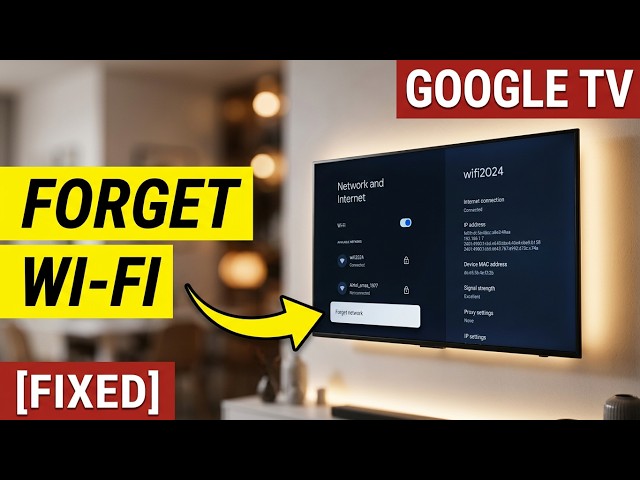
7. Forget the Network and Re-Enter Credentials Cleanly
If the saved profile on the TV is corrupted, clearing it forces a fresh configuration.
-
Go to the TV’s Wi-Fi network list and select Forget Network or Remove.
-
Restart the TV.
-
Select your network, enter the password carefully, and confirm connection before testing another router reboot.
Quick Reference: TV vs. Router Troubleshooting
Common Mistakes to Avoid
-
Blaming the TV password immediately: If the password works right after you type it in, the key itself is usually fine—the issue is typically negotiation, band timing, or saved profile state after a restart.
-
Rebooting the router repeatedly while testing: Giving your router 2 to 3 minutes to finish booting lets all radios and DHCP services settle before you judge whether the TV reconnected.
-
Jumping straight to a factory reset on the TV: A factory reset logs you out of streaming apps and wipes picture calibration and preferences. Try power cycling, splitting bands, checking security mode, and forgetting the Wi-Fi network first.
-
Using special symbols blindly if older gear is involved: While modern devices handle complex passwords well, certain older TVs have quirks with unusual characters or very long SSIDs.
Pro Tips for a More Reliable Smart TV Connection
-
Use Ethernet when possible: If your smart TV sits near the router or a wired mesh node, a simple Ethernet cable bypasses Wi-Fi band and encryption handshakes completely.
-
Keep the router out of tight enclosed cabinets: Heat and metal/concrete obstructions hurt wireless stability and can cause radios to behave erratically after restarts.
-
Save streaming logins cleanly: Before doing deeper network changes or resets, make sure you know your main streaming account passwords so you aren’t locked out mid-movie night.
Frequently Asked Questions
Why does my smart TV ask for the Wi-Fi password only after the router reboots?
When the router restarts, its wireless radios and IP assignment services come back in stages. If your smart TV tries to reconnect before the router finishes initializing—or if a security handshake or band switch fails—the TV can drop the active session and prompt you to set up the connection again.
Could a power outage cause my smart TV to forget its Wi-Fi?
Yes. A sudden power cut can interrupt a TV’s current network state, reset or delay its clock sync, or cause the router and TV to boot in an awkward order. Doing a full unplug-and-wait cycle on both devices after a power outage helps prevent lingering glitches.
Is switching from WPA3 to WPA2 safe for a home network?
Yes. WPA2-Personal (AES) remains widely used and secure for standard home Wi-Fi networks, and it avoids compatibility issues that some smart TVs have with WPA3 or mixed WPA2/WPA3 modes.
Should I connect my smart TV to 2.4 GHz or 5 GHz?
Choose 2.4 GHz if the TV is far from the router or separated by walls/floors, since it penetrates obstacles better. Choose 5 GHz if the TV is close to the router and you want higher bandwidth for 4K streaming—just make sure the signal is strong and consistent.
When is it time to suspect a faulty Wi-Fi card in the smart TV?
If the TV loses its Wi-Fi settings or drops connection even on a completely separate mobile hotspot, after a full power cycle, and after forgetting and re-adding the network, the TV’s internal wireless module or OS software may be failing. At that point, using an Ethernet cable or an external streaming stick is often the easiest workaround.
Conclusion
A smart TV losing its Wi-Fi password every time the router reboots is annoying, but it is rarely a lost cause. Most of the time, it comes down to a timing snag during router startup, band steering between 2.4 GHz and 5 GHz, WPA3/mixed security quirks, or a stuck power state on the TV.
Start with a proper 60-second power cycle of both devices, check your TV’s date and time, and separate your Wi-Fi bands or set security to WPA2-AES if needed. Once the handshake between your TV and router stops tripping after restarts, you can get back to watching without reaching for the remote to retype passwords.